

Items & stock · Help
Create and review warehouse locations
Put stock in the correct warehouse and storage location, and distinguish physical locations from system stock buckets.
On this page
Start with the warehouse
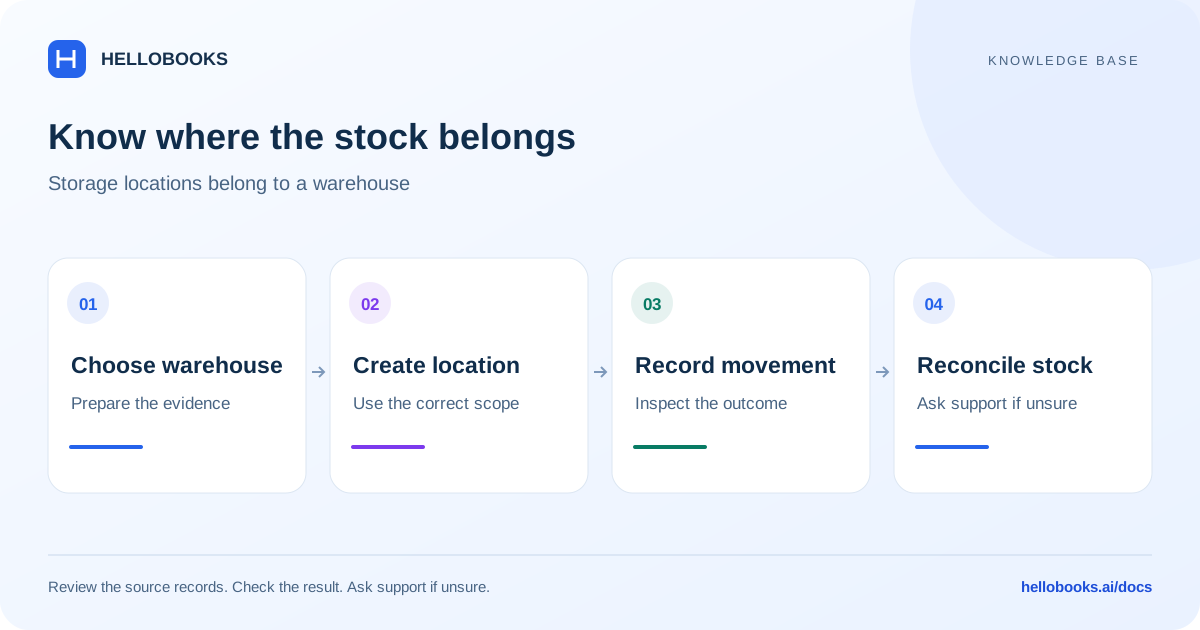
A storage location is a rack, shelf, aisle or bin inside a warehouse. Create or verify the warehouse before adding its locations. Confirm the organization and entity and agree a location-code convention that staff can recognize on physical labels.
Warehouse locations describe physical stock placement. A reporting tracking location or class is a different dimension; do not substitute one for the other.
Create a storage location
The Warehouse location list provides Locations and Capacity tabs and an Add Location action.
- Open Warehouse locations and choose Add Location.
- Review Location Code and select Warehouse. Both are required.
- Enter Capacity when required or when you have a declared limit. A supplied capacity must be positive.
- Review Status and choose Create location.
- Wait for “Location created”, then reopen the location and verify its warehouse, code, status and capacity.
Understand capacity and Main
For a warehouse with a declared capacity, a new non-Main location needs a capacity. Existing-location edits may have different requirements; follow the actual validation instead of adding a guessed value.
Main’s capacity is calculated from the warehouse capacity less other declared location capacity and is displayed instead of entered. A blank capacity means no limit declared; it does not establish that the physical warehouse has unlimited space.
Select the location when recording stock
On an item form that offers Warehouse and Location, only locations belonging to the selected warehouse are listed. Changing Warehouse clears the old location; review the replacement. Without a selected warehouse, the form displays Main as the stock location.
Creating a location does not itself move stock into it. Use a supported receipt, transfer or other stock-movement workflow and inspect the resulting quantities. System stock buckets are view-only and are not ordinary locations to rename or delete.
Example: split ten units between two locations
A teaching example starts with 10 units in one warehouse. After a verified transfer of 4 units to a second location, the expected location quantities are 6 and 4, with a warehouse total of 10.
If both locations show 10, investigate duplicated opening stock or a repeated movement rather than treating a location edit as a correction. Capture the item, location codes and movement references for support.
When to contact support
If a field, permission, saved value or resulting balance differs from this guide, email hello@hellobooks.ai with the entity, screen, record reference, expected result and exact message. Do not send passwords, one-time codes or full bank details. Opening an email draft does not create a confirmed ticket.
Frequently asked questions
How do I add a warehouse location?
Open Warehouse locations, choose Add Location, enter Location Code, select Warehouse, review Capacity and Status, and choose Create location. Reopen it after confirmation. Creating the location does not move stock.
Why is capacity required?
A new non-Main location inside a warehouse with a declared capacity needs a positive capacity. Main is calculated. Follow the field validation; do not invent a number merely to save.
Does creating a location transfer inventory?
No stock-movement instruction is established by creating a location. Record the supported stock receipt or transfer separately and reconcile the source, destination and total quantities.