

Settings · Help
Find settings and update company details, dates and number formats
Find the correct company and personal settings, update supported company and contact fields, and save date and number display preferences with checks for the result.
On this page
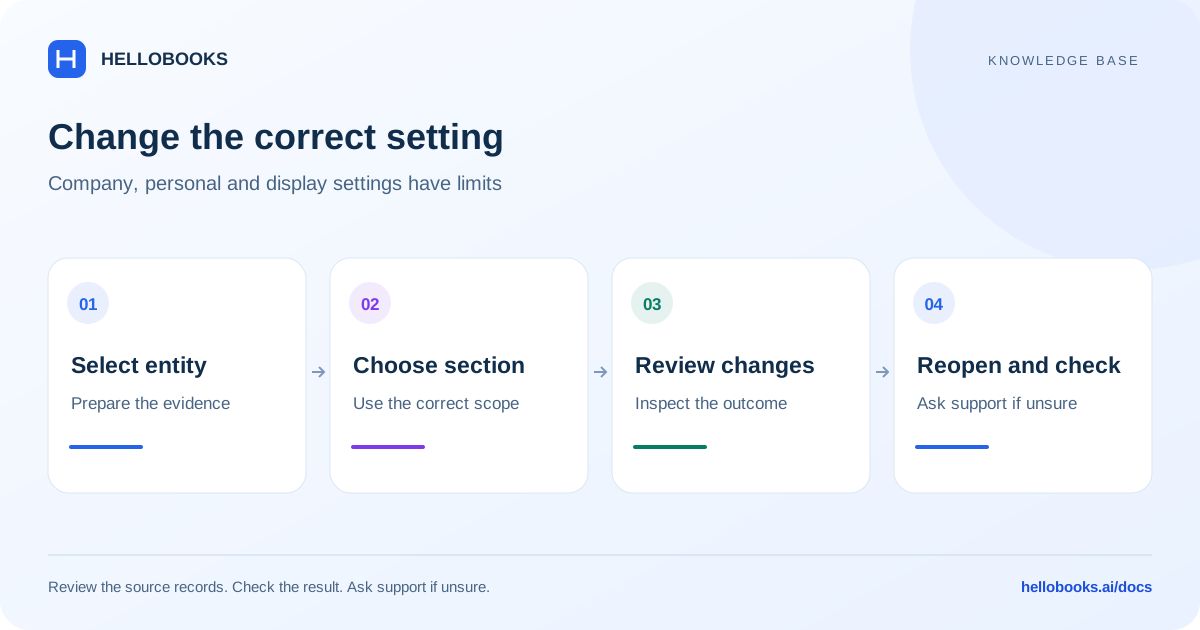
Choose the company and the setting you intend to change
Settings contains both Workspace settings and My Account settings. Workspace is the navigation group for company and operational configuration. It does not mean that every form changes every company: the General and Display Preferences procedures below save against the selected entity.
Select the intended organization and entity before opening a form. Check the company name shown in Settings. Have the approved new values and the current values available so you can compare the result. Use an account authorized to make the change; being able to see a section does not establish permission to save every setting.
This guide covers finding the current sections, saving supported General fields and changing display formats. It does not establish a tax-registration change, financial-year change, base-currency conversion, period-unlock procedure or a procedure for every integration. Email hello@hellobooks.ai when the requested setting or its consequences are unclear.
Open Settings from your profile menu
The Settings entry opens the unified settings page. Expand a section in the settings sidebar to see its options.
- Confirm the selected organization and entity in HelloBooks.
- Open your profile or avatar menu and select Settings.
- In Workspace, expand Company Information and choose General to review company, contact and address details, or choose Display Preferences to change date and number presentation.
- Read the section heading before editing. Some options open their own page; returning to Settings lets you choose another section.
Find the correct settings section
Company Information contains General, Legal & Compliance, Tax Configuration, Banking, Period Lock, Display Preferences and Inventory Policy. The Banking entry here is separate from the Banking group used to manage feeds.
Users & Roles contains Members, Roles & Permissions and Departments. Membership and permission controls depend on your access. Ask the entity owner to check your role when the expected control is unavailable.
Sales contains Email Template, Invoice Reminder, Branding Themes, Invoice Preferences and Customer Portal. Invoice Reminder is for reminder configuration; it is not the recurring-invoice creation screen. A change to an invoice preference should be checked on a relevant draft before you rely on its output.
Purchases contains Auto Inbox Email, Auto Sync Inbox and Auto Sync Trust. Banking contains Bank Accounts & Feeds, Connect by Email, Email Feed Inspector and Munimji Autopilot. For stopping imports, use the feed-specific guide rather than deleting accounting entries.
Notifications contains Email, Push & In-app Channels, Comment Notifications, Cashflow Alerts and Payment Gateway Alerts. Collect Payments groups payment-provider and payment-method settings. Integrations groups items such as Webhooks, Third-party Apps and Hardware & Devices. Mobile App includes Trusted Devices and SMS Feed Inspector.
My Account groups personal controls including Notifications, Security, Privacy & consent, Support & Help and Subscription & Payment. Some compliance, shipping and integration entries vary by the selected entity's country. A missing option is not proof that changing the company's country is the correct remedy.
Update a supported field in Company Details
General separates Company Details, Contact Information and Business Address. Each block has its own Edit, Save and Cancel controls. Work on one block at a time.
The reviewed Company Details save supports Company Name, Tax ID / GST Number, Industry and Employee Count. Confirm any tax or industry decision with the person responsible for your books before changing it. Changing Company Name in HelloBooks is not a legal registration change.
Legal Business Name and Business Registration Number are visible in this form, but their persistence is not established by the reviewed save action. For those identity changes, email hello@hellobooks.ai and verify the supported procedure before relying on an apparent edit.
- Open Settings, then Company Information, then General.
- In Company Details, select Edit.
- Update the intended supported field, such as Company Name. Review the other values in the same block before saving.
- Select Save within Company Details, or Cancel to discard the unsaved edit.
- Wait for Company details updated. If an error appears, record it and do not assume the change saved.
- Reopen the form for the same entity and check the saved value. Review a relevant document preview separately if the change is intended to affect documents.
Update company contact information
Contact Information displays Primary Email, City, Website and LinkedIn Profile. These are company details in the selected entity, not a documented method to change your login email or every notification recipient.
Review all contact fields before saving because the action sends the supported contact values together. Use a company-controlled email address and verify the exact spelling. Do not put credentials or private access links in public-facing company fields.
- In Settings, open Company Information, then General.
- Select Edit in Contact Information.
- Change Primary Email, Website or LinkedIn Profile as needed. If the required City is not available in the selector, contact support instead of choosing an incorrect city.
- Select Save in Contact Information and wait for Company details updated. Cancel discards the unsaved contact changes.
- Reopen the section and confirm the values. If your goal is email delivery, also check the appropriate Notifications or Sales setting; changing Primary Email alone is not proof that delivery routing changed.
Change date and number display preferences
Display Preferences changes how values are presented for the selected company. The reviewed screen states that these preferences currently apply to the Invoices list and that other screens may use their own formatting. Do not assume every report, export or PDF uses the same format.
Date Format offers DD/MM/YYYY, MM/DD/YYYY and YYYY-MM-DD, with examples beside the labels. Number Format offers International (1,234,567.89) and Indian — lakh/crore (12,34,567.89). These are display choices; they do not convert currency or change the stored accounting amount.
- Open Settings, expand Company Information and select Display Preferences.
- Choose Date Format and review its Preview.
- Choose Number Format and review its Preview. The sample currency symbol in the preview does not change the company's currency.
- Select Save Changes after changing a value. The button is disabled when there are no unsaved changes.
- Wait for Display preferences saved, then check the issue date, due date and amounts in the Invoices list.
- Use Reset before saving to restore the currently saved preferences. To reverse a previously saved choice, select the prior format and save it again.
Examples: a contact change and a display-format change
Fictional contact example: Example Studio wants its company Primary Email to be accounts@example.com. Select Example Studio, open General, edit Contact Information and save that address. Reopen the same entity's form to check it. Separately verify invoice-email and notification settings if the intended outcome includes delivery; the company email edit alone does not prove those changed.
Fictional formatting example: an invoice dated 31 December 2026 has an amount of 1,234,567.89 in its original currency. Selecting YYYY-MM-DD presents the date as 2026-12-31 where the preference is supported. Selecting Indian digit grouping presents the number as 12,34,567.89. The invoice date, currency and accounting amount are not changed by this presentation choice.
If another company needs the same preferences, select that company and review its own setting. Do not assume saving the first entity applied the change to every entity.
Check the saved result and resolve common problems
No company selected or No entity selected: choose the intended entity and reopen the form before saving.
Save Changes is disabled in Display Preferences: select a different value first and wait for any active request. Reset returns to saved values, so it can also leave nothing to save.
Failed to save display preferences or Failed to update company details: keep the exact error, confirm the active entity and access, and check the current stored value before retrying. A temporary edit on screen is not proof of persistence.
A saved format appears in Invoices but not another screen: the reviewed rollout explicitly has limited coverage. Include the screen name and expected format in a support request.
An identity field appears unchanged after saving: Legal Business Name and Business Registration Number are not established by this General save path. Contact support with the intended field and redacted evidence.
Banking admin access required: feed administration has a separate permission boundary. A user who can categorize transactions may still need the entity owner's help with bank connections.
Get help with a setting that is unclear
Email hello@hellobooks.ai with the organization or entity, country, exact Settings section, field, old and intended values where safe, the time of the attempt and exact error. Include a redacted screenshot and state whether the value remained after reopening the page.
Do not send passwords, one-time codes, API keys or private bank credentials. The support link opens an email draft; review and send it, and keep the team's reply or ticket reference. Opening the draft alone does not submit a ticket.
Frequently asked questions
Where are HelloBooks settings?
Open your profile or avatar menu and select Settings. Workspace contains company and operational sections; My Account contains personal sections. Check the selected organization and entity before editing.
How do I change my company name?
For the selected entity, open Settings, Company Information, General. Select Edit in Company Details, change Company Name, select that block's Save, and wait for Company details updated. Reopen the form to verify it. This changes a HelloBooks field; it is not a legal registration change.
How do I change the company email address?
Open Settings, Company Information, General, then Edit in Contact Information. Change Primary Email, review the other contact fields and select Save. Reopen the same entity's form to verify it. This does not establish a login-email change or a change to every notification recipient.
Can I change Legal Business Name or Business Registration Number from General?
Those fields are visible, but their persistence is not established by the reviewed General save action. Email hello@hellobooks.ai for the supported identity-change procedure and verify the saved result before using it in documents.
How do I change the date format?
In the selected entity, open Settings, Company Information, Display Preferences. Choose DD/MM/YYYY, MM/DD/YYYY or YYYY-MM-DD under Date Format, review the Preview and select Save Changes. Wait for Display preferences saved and check the Invoices list. Other screens may retain their own formatting.
Does Indian number formatting change my currency or invoice total?
No. In Display Preferences, Indian — lakh/crore changes digit grouping where supported, for example 1,234,567.89 to 12,34,567.89. It does not convert currency or change the stored amount. The preview's sample currency symbol is not a currency setting.
Does Reset undo a saved display preference?
Reset discards unsaved display selections and restores the currently saved preferences for the entity. To reverse an earlier saved format change, select the previous format and use Save Changes again.
Where do I find invoice reminders and invoice preferences?
Open Settings and expand Sales. Invoice Reminder and Invoice Preferences are separate entries, alongside Email Template and Branding Themes. Invoice Reminder is not the recurring-invoice creation screen. Email hello@hellobooks.ai if the exact configuration you need is not covered.
Why is a setting missing or unavailable?
Check the selected entity, country and your permissions. Some compliance and integration settings are country-specific, and banking or user-management actions have separate access requirements. Ask the entity owner to check your role or email hello@hellobooks.ai with the exact section and error.