

Banking · Help
Disconnect a bank feed or revoke email and SMS import access
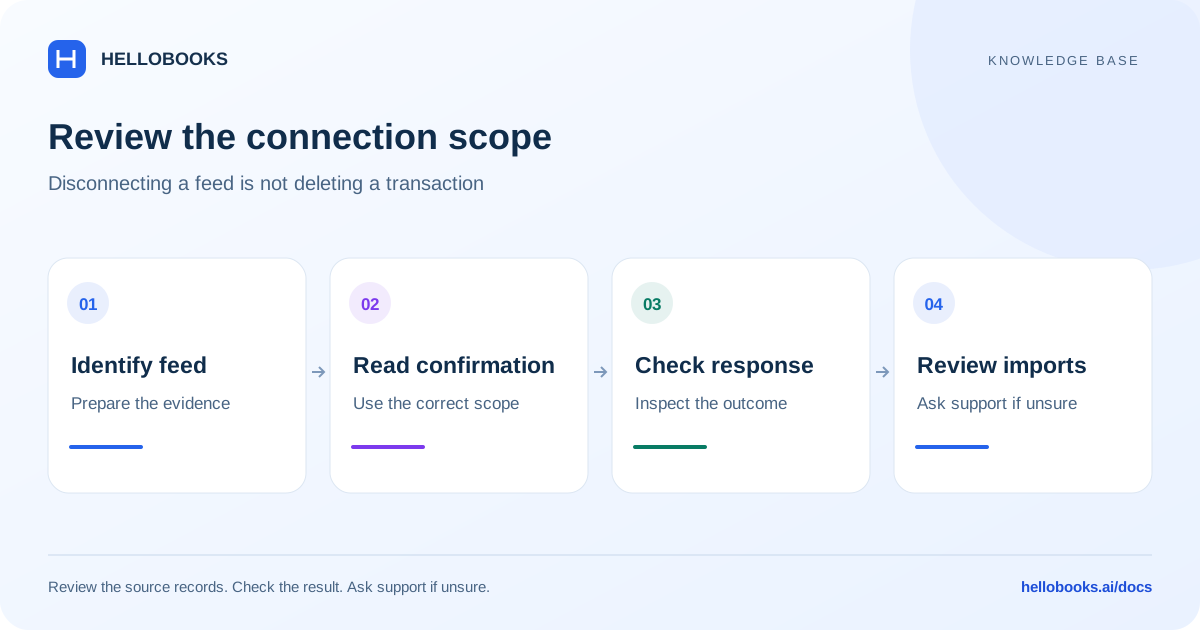
Identify the feed type, use the correct disconnect or revoke control, read its confirmation and check the result without treating feed disconnection as transaction deletion.
On this page
Identify what is supplying the transactions
HelloBooks has different controls for a Plaid bank connection, an email forwarder and a trusted SMS device. Disconnect bank manages a Plaid connection. Revoke under Trusted forwarders manages one forwarding email address. Revoke under Trusted Devices manages one phone's SMS feed access.
These actions address future feed access. Do not use transaction deletion, uncategorization or account deletion as a substitute for disconnecting a feed. This guide does not establish deletion or long-term retention behavior for imported records.
A manual statement upload is a separate workflow. If you are unsure which source supplied a transaction, note the bank or account, entity and transaction reference and email hello@hellobooks.ai before changing connections.
Check the entity, access and connection scope
Select the intended organization and entity. Record the institution name, masked account details, latest displayed sync and any reconciliation period affected. Keep the bank's statement available for a later comparison.
Plaid disconnect uses the institution connection, which can contain more than one account. Treat the action as connection-wide. If you intend to stop only one account while leaving other accounts connected, email hello@hellobooks.ai for the supported procedure before confirming.
The reviewed Bank Accounts & Feeds administration page requires bank-connection management access and is limited to US entities. It can show Banking admin access required or Bank feeds are US-only today. Bank-card feed controls have wider country checks, so availability differs between these two screens. A visible country option or menu is not a guarantee that a particular institution is supported.
Use the entity owner's help when you lack access. Do not change an entity's country or create a duplicate bank account merely to make a disconnect control appear.
Disconnect Plaid from Bank Accounts & Feeds
Use this path when the selected US entity and your access allow the Banking Admin page. The Bank connections card lists linked institutions, account counts, status and a last-sync value when supplied.
- Open your profile or avatar menu and select Settings.
- Expand Banking and select Bank Accounts & Feeds.
- In Bank connections, locate the correct institution and review its account count. Use Refresh if you need to reload the displayed connection status.
- Open that institution's three-dot menu and choose Disconnect bank.
- Read the browser confirmation: Disconnect [bank name]? Auto-sync will stop and the access link will be revoked at Plaid. Existing transactions stay in the ledger. Cancel if the institution or scope is wrong; cancelling returns without sending the disconnect request.
- Confirm only when you intend to disconnect that institution connection. The action changes to Disconnecting while pending.
- Wait for the bank-name disconnected message and for the connection list to refresh. If an error appears or the result remains unclear, check the current status and contact support before assuming the feed stopped.
Disconnect from a linked bank card
Where the Banking page displays a linked Plaid bank card with lifecycle controls, its three-dot menu also contains Disconnect bank. This menu is not the same as a transaction row's actions. Country, connection state and manually managed account types can change which items appear.
- Open Banking for the correct entity and locate the linked bank card.
- Open the card's three-dot menu and confirm that it refers to the intended bank connection.
- Choose Disconnect bank and read the same institution-level browser confirmation before accepting. Cancel if you intended only to remove a duplicate transaction or stop one account within a multi-account connection.
- Wait for the disconnected message. The app refreshes connection and account data after the request succeeds.
- Review the current connection status and existing transaction view. Record unexpected results and email hello@hellobooks.ai; do not create a second connection simply to test whether the first one disconnected.
Understand the confirmation and check the outcome
The Plaid confirmation says that auto-sync will stop, access will be revoked at Plaid and existing transactions stay in the ledger. Those statements are the reviewed interface's intended behavior. This guide has not verified the provider's revocation or backend retention for your account; the public knowledge base cannot inspect a live connection.
Disconnect bank is not a procedure to erase imported transactions, reverse postings, remove a chart-of-accounts bank account or close a bank account with the bank. If deletion, correction or regulatory retention is your objective, ask support for that specific procedure.
After the action, check the displayed connection status and the existing ledger or banking view. Compare an important period with the statement and record the result. A disconnected success message alone is not an independent provider audit or confirmation that every queued event has finished.
If fresh transactions continue appearing, first establish whether they came from another connection, email, SMS or a manual upload. Give support the source, timestamps and references rather than deleting the evidence.
Use reconnect when the problem is expired bank sign-in
If the intention is to restore an existing feed after credentials or access expired, review Reconnect needed rather than choosing disconnection automatically. In Bank connections, an unhealthy connection can show Reconnect. Linked bank-card menus can show Reconnect bank or Update bank sign-in.
The reconnect screen is tied to the existing connection and opens the provider sign-in flow. Complete that flow only for the intended bank and wait for the HelloBooks result. Try again is available when preparation fails. Return through the visible Reconnect control when the screen reports a missing item; do not invent an identifier.
A reconnect success message does not establish which historical dates were imported or whether all missing transactions were recovered. Check the bank statement and transaction dates. Reconnecting a revoked or deliberately disconnected connection may require a different supported setup; email hello@hellobooks.ai if the existing reconnect control fails.
Revoke a trusted bank-alert email forwarder
This workflow applies to the selected entity's Trusted forwarders list. The reviewed flow is described as owner-managed. It controls trust for one forwarding address; it does not change a forwarding rule inside Gmail, Outlook or another mail provider.
The page can report that the trusted-forwarders service is rolling out. A rollout warning is not confirmation that a revoke action completed.
- Open Settings, expand Banking and choose Connect by Email.
- Find Trusted forwarders and verify the email address you intend to remove.
- Select Revoke on that address. Read the browser confirmation: Revoke [email address]? Future emails from this address will be rejected.
- Cancel if the address is wrong. Otherwise confirm and wait for Forwarder revoked. Check the refreshed list rather than relying on an unsaved visual change.
- If you also intend to stop sending mail, review and disable the relevant forwarding rule in your email provider separately. This is a separate mail-provider action, not something the HelloBooks Revoke button performs.
- Check any later imports in Email Feed Inspector and contact support if the result differs. Revoking one forwarder does not establish that every email, SMS or Plaid source for the bank has stopped.
Revoke a trusted device's SMS bank-feed access
The organization owner can manage the selected entity's trusted SMS devices in the reviewed Profile settings flow. A different user can see Owner access required. Use the visible Mobile App settings entry; the separate older trusted-devices route is not the documented path.
The interface says access is lost on the mobile app's next refresh, so do not treat the click as proof of immediate revocation on an offline phone. It also says previously imported SMS records are kept; account-specific retention and device behavior require support verification.
- As the authorized organization owner, select the intended entity, open Settings, expand Mobile App and select Trusted Devices.
- In Trusted Devices for SMS Bank Feed, identify the correct phone and device. Record enough masked detail to distinguish it from other devices.
- Select Revoke on that device and read Revoke this device?. The dialog states that SMS bank-feed access is lost on the next refresh and that already imported SMS records are kept.
- Confirm with Revoke device only for the intended phone, then wait for the result. If the page reports that the SMS feed backend is not yet wired in this environment, contact support; the warning is not a completed revocation.
- Check the device list and subsequent SMS feed activity. If imports continue or the mobile refresh result is uncertain, email hello@hellobooks.ai with the entity, masked device identity and timestamps.
Example: stop one import source without deleting accounting records
Fictional Plaid example: Example Bank has one connection containing a current account and a savings account. You want to stop only the savings feed. Because Disconnect bank targets the shared connection, cancel and ask support for an account-specific procedure. If the intended task is to stop the entire connection, follow the confirmed disconnect flow and then verify the displayed status and both accounts' records.
Fictional email example: bank alerts arrive through accounts@example.com and a phone also imports SMS. Revoking accounts@example.com addresses that email forwarder. It does not establish that the phone's SMS access has stopped. If the goal is to stop both sources, review the correct device separately and verify each result.
Neither example requires deleting an invoice, payment, bank transaction or reconciliation simply to stop a feed. If an imported record is wrong or duplicated, retain its reference and ask for the relevant correction procedure.
Resolve missing controls and uncertain results
Banking admin access required: ask the entity owner to check your bank-connection access. Transaction-entry access alone does not establish permission to manage a feed.
Bank feeds are US-only today on Bank Accounts & Feeds: this is the reviewed administration-page restriction. Bank-card availability can differ. Email support with the country, institution and screen; do not change entity country to bypass the message.
Disconnect bank is missing or disabled: confirm that you are looking at a linked Plaid bank card or institution, that the correct entity is selected and that no request is pending. Manual accounts and other feed sources use different controls.
Failed to disconnect bank, Failed to revoke or another error: record the exact message and current status. The public chatbot cannot confirm whether the backend completed a request after a connection failure. Contact support when the result is uncertain.
Email hello@hellobooks.ai with the organization and entity, country, institution or source type, masked account or device details, action, timestamp, exact message and expected result. Include any relevant redacted transaction references. Never send bank passwords, one-time codes or access tokens.
The support link opens an email draft. Review and send it, then keep the team's reply or ticket reference; opening the draft alone does not submit a ticket.
Frequently asked questions
How do I disconnect a Plaid bank feed?
For a supported US entity with bank-connection management access, open Settings, Banking, Bank Accounts & Feeds. In Bank connections, open the institution's three-dot menu and choose Disconnect bank. Check its account count and read the browser confirmation before accepting. Wait for the disconnected message and refresh the status. Where available, a linked Banking card has the same Disconnect bank action. Contact hello@hellobooks.ai if access, country or result differs.
Does disconnecting a bank feed delete my transactions?
The reviewed Plaid confirmation says existing transactions stay in the ledger and that disconnection stops auto-sync and revokes provider access. This guide has not verified backend retention for your account. Disconnect bank is not a transaction-deletion or bank-account-deletion procedure. Check your records and contact hello@hellobooks.ai for a deletion or retention question.
Can I disconnect just one account at a bank?
The reviewed Disconnect bank action targets the Plaid institution connection, which may contain multiple accounts. Treat it as connection-wide. If you need to stop one account and keep others connected, cancel and email hello@hellobooks.ai for the supported account-specific procedure.
What happens if I cancel the bank disconnect confirmation?
Cancelling the reviewed browser confirmation returns before the disconnect request is sent. It does not perform the disconnect. Check the institution name and scope before deciding whether to confirm.
Should I disconnect when my bank needs a new sign-in?
If you want to restore an existing feed, use the visible Reconnect, Reconnect bank or Update bank sign-in control for that connection. Complete the provider flow and verify the resulting status and transaction dates. Do not assume reconnect recovers every historical date; contact hello@hellobooks.ai if records are missing.
How do I stop a trusted email forwarder?
In Settings, Banking, Connect by Email, find Trusted forwarders. Select Revoke for the intended address, read the confirmation about future emails being rejected and confirm. Wait for Forwarder revoked and check the list; a service-rollout warning is not success. Separately disable the relevant mail-provider forwarding rule if you want to stop sending mail. Other sources are unaffected by this one-address action.
How do I stop a phone from importing SMS bank alerts?
As the authorized organization owner, open Settings, Mobile App, Trusted Devices for the selected entity. Select Revoke for the correct phone, read Revoke this device? and confirm with Revoke device. The interface says SMS feed access is lost on the app's next refresh, not immediately on an offline phone. Check the result and contact hello@hellobooks.ai if the service is unavailable or imports continue.
Will a feed cutoff date disconnect my bank?
No. Import alerts from is an import date control, not the reviewed Disconnect bank, trusted-forwarder Revoke or device Revoke action. Use the control for the source you intend to stop, and email hello@hellobooks.ai if the goal or effect is unclear.
Can the chatbot confirm my bank has disconnected?
No. The public knowledge-base assistant can explain the documented controls and cite this guide, but it cannot inspect your provider connection or account state. Check the connection status and contact hello@hellobooks.ai with the institution, entity, timestamp and exact result when you need confirmation.