

Reports · Help
Save reports, manage layouts, and reuse filters
Understand Memorize, financial statement layouts and Custom Report Builder saves so a saved report can be reproduced.
On this page
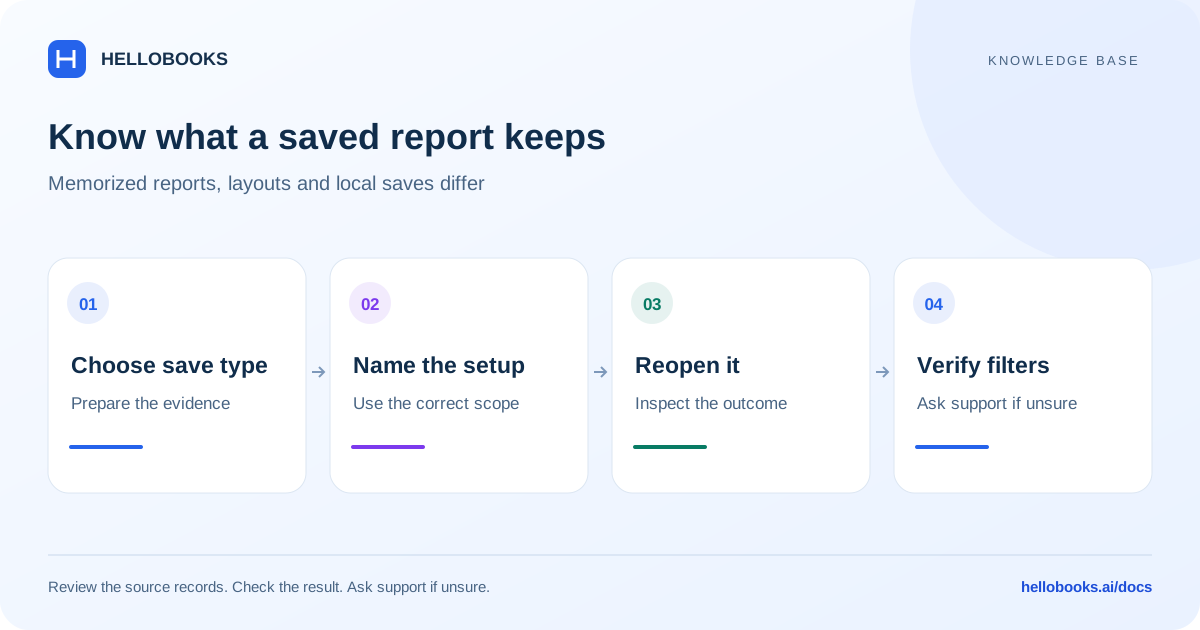
Choose the save feature you need
Memorize stores a supported report name and filter configuration. For Profit & Loss, Balance Sheet, AR Aging and AP Aging, the saved entry reopens the original report page with its saved configuration. It is not a frozen copy of the numbers.
Layout controls change how P&L, Balance Sheet and Cash Flow are presented. A layout and a memorized date/filter selection are different objects.
The separate Custom Report Builder saves its configurations in the current browser storage, keyed by organization and entity. Those browser-local saves do not automatically appear on another computer or in the server-backed Memorized Reports list.
India GST Reports has a separate server-backed report-template system for the selected report type and period configuration. Do not confuse a GST report template with a financial statement layout or a browser-local custom report.
Memorize a supported report
Begin on the original report page. If Memorize is missing, the page or your permissions may not support this action. Do not assume every report can be saved through the same workflow.
- Choose the intended entity, dates, basis, comparison and other available filters. Apply the filters and check the result.
- Click Memorize. Review the name and saved configuration context.
- Give the report a descriptive name, such as Receivables review - September - main entity.
- Choose Private, Company or Workspace visibility deliberately. Company and Workspace scopes are broader than a private report.
- Select Save memorized report and confirm the saved entry appears in Memorized Reports.
- Open the saved entry and confirm the restored heading, dates and filters before relying on the numbers.
Understand what can run in the report builder
The reviewed server-backed builder used by Memorized Reports runs Sales and Purchases. Profit & Loss, Balance Sheet and AR/AP Aging use saved filter configurations that reopen their original pages; they do not freeze the amounts. Trial Balance, Inventory, Tax and Payroll definitions cannot run through this server-backed builder. The separate browser-local Custom Report Builder supports Invoices, Bills, Customers, Vendors and Transactions (Journals).
A saved entry is not proof that every report type supports builder execution, exports or schedules. If an entry says the report is not supported, open the original report or ask support rather than repeatedly attempting to run it.
Choose and manage a financial statement layout
On a supported financial statement, open the Layout control. Choose Standard Layout or an existing saved layout. The available actions can include New layout, Edit, Duplicate, Set as default and Delete.
Creating or changing layouts needs the layout-write permission. A report reader may be able to select an existing layout without having permission to manage layouts.
For a new format, use Duplicate where available, give the copy a clear name, review its rows and totals, and compare it against Standard Layout. Setting a default changes future presentation behavior in the applicable scope; confirm that scope before saving.
Delete only a layout you intend to remove. Review the inline confirmation. If the selected layout is deleted, the control falls back to Standard Layout. Deleting a layout does not delete the source transactions.
Use the separate Custom Report Builder
The Custom Report Builder offers datasets such as Invoices, Bills, Customers, Vendors and Transactions (Journals). Choose the dataset, columns, conditions, grouping and sorting, then run the report.
Use a clear report name before selecting Save. Its configurations are held in this browser for this organization/entity. Clearing site data or changing devices can remove or hide those configurations; keep an independent record of important filter definitions.
Check any partial-data or load warnings before exporting. A grouped subtotal only describes the records included by the current dataset and filters.
Save an India GST report template
In GST Reports, choose the report type and its required period before saving a template. Give it a descriptive name, review whether it should be the default, and confirm the save succeeds. The template stores report type, date-range type, period value and, for portal-format preview, form type.
Select an existing template from the template control, then check the restored report and period before generating the output. A saved period does not itself establish that the next return period has been selected, and saving the template does not file a return.
- Select the Indian entity, report type and applicable period.
- Open the template save control and enter a clear name.
- Review the default option, save and confirm the success message.
- Select the saved template, verify its restored period/form context and generate the report.
Example: repeat a monthly collection review
Illustrative example: on AR Aging, select the relevant entity and an as-of date of 30 September. Confirm the customer filter and aging view, then Memorize it as September collections review with Private visibility.
Reopen it from Memorized Reports and verify the same as-of date. If you later record a payment or correct an invoice, the reopened report may show different results because it reads current accounting data. Keep a dated export if you need the exact figures reviewed previously.
For October, update the date on the original report before saving or maintaining the next configuration. Do not assume the word monthly in the report name causes its saved date to move automatically.
Check schedules separately from saving
A Schedules route exists for memorized reports, but a successful save is not evidence that scheduled delivery has run. Verify the supported base report, recipient permissions, timing, time zone and actual delivery result in your configured account before relying on an automated schedule.
This guide has not executed a schedule or sent report emails. Contact hello@hellobooks.ai if the schedule is missing, unsupported or not delivering, including the saved report name and last visible status.
When a saved report does not reopen correctly
Check that you are in the same organization and entity and have access to the selected visibility scope. If a browser-local report is missing, check whether you changed browser or cleared site storage.
Email hello@hellobooks.ai with the report type, saved name, visibility, entity, expected filters, actual restored filters and a redacted screenshot. Send the email to request help; opening the mail draft alone does not submit a ticket.
Frequently asked questions
Are saved reports the same as saved layouts?
No. Memorized reports keep supported filters and reopen the relevant report; layouts control the arrangement of a supported financial statement. The Custom Report Builder has a third, browser-local save system. India GST Reports also has a separate server-backed report-template control.
Will a saved custom report follow me to another computer?
The reviewed Custom Report Builder saves in browser storage for the current entity. Do not assume those configurations synchronize to another device. Server-backed Memorized Reports are a different feature.
Does Memorize freeze the report amounts?
No. It saves a configuration, so later accounting changes can affect its result. Keep a dated export when you need evidence of the figures reviewed at a particular time.
Can every report be scheduled or run through the builder?
No. The server-backed builder used by Memorized Reports runs Sales and Purchases; Profit & Loss, Balance Sheet and AR/AP Aging reopen their original pages from saved filter configurations, without freezing amounts. Other base types are not runnable through that builder. The separate browser-local Custom Report Builder supports Invoices, Bills, Customers, Vendors and Transactions (Journals). Saving through either feature does not prove scheduled delivery; verify it in the configured account or contact hello@hellobooks.ai.