

Items & stock · Help
Set up brands and variant items
Create brands and use item attributes to build distinguishable SKUs without losing existing variant records.
On this page
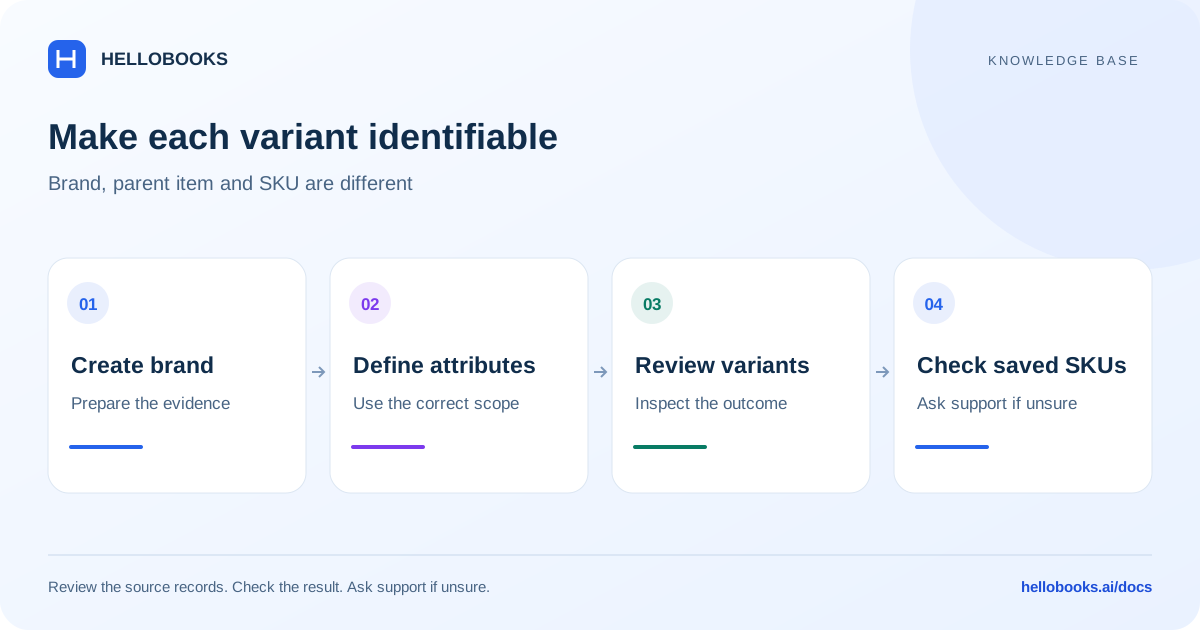
Keep brand, parent item and variant separate
A brand identifies a maker or product label. An item is the parent product; a variant distinguishes a particular combination such as size and colour. Before creating records, decide how each sellable unit will be identified and search the existing list.
Select the correct organization and entity. Creation and later stock changes are separate actions. A label change is not evidence of a physical stock movement.
Brand Tracking must be enabled in the selected entity’s Inventory preferences for the Brands page and optional Brand field to appear. If either is missing, have an authorized administrator review that preference or email hello@hellobooks.ai.
Create a brand
Use the Brands screen for the maintained brand list. It searches name and code and provides separate active and archived views.
- Choose New Brand.
- Enter Brand Name; it is required. Add Code and optional Logo URL, Contact Person, Phone, Email, Website or Notes as appropriate.
- Choose Save Brand and wait for “Brand created”.
- Search the list and reopen the brand to check the saved values.
- Select the intended brand on the item form. If more than one brand produces separate stock/pricing rows, review every row before saving.
Generate item variants
Open the parent item’s Variants section. The Product Variants list is useful for finding a variant SKU across parents; its empty-state guidance directs creation through the parent item.
- Choose Add attribute and enter an Attribute name such as Size.
- Enter Values (comma-separated), such as S, M. Add a second attribute such as Color with Red, Blue.
- Choose Generate variants and review every generated combination.
- Check each row’s name, SKU, barcode, units and Marketplace SKU where used. Correct generated identifiers before saving.
- Save through the parent item form, reopen it, and compare the saved variant list with the intended combinations.
Example: two sizes and two colours
Size values S and M combined with Red and Blue create four combinations: S/Red, S/Blue, M/Red and M/Blue. Give each a distinct identifier consistent with your operating records.
If the physical count is three units in each combination, the teaching total is 12 units. Reconcile each combination as well as the parent total; do not enter 12 into every variant.
Handle regeneration, removal and archiving carefully
Generating combinations replaces the visible combination list and retains matching existing combinations where recognized. Review the list before saving after changing attributes. The form explicitly warns that variants removed during an edit are deleted when saved; do not use removal as a stock correction.
Brand Archive and Restore are different from editing a brand’s details. After either action, check the appropriate active or archived view. Do not assume archiving a brand removes historical transactions or refunds a sale.
When to contact support
If a field, permission, saved value or resulting balance differs from this guide, email hello@hellobooks.ai with the entity, screen, record reference, expected result and exact message. Do not send passwords, one-time codes or full bank details. Opening an email draft does not create a confirmed ticket.
Frequently asked questions
How do I create a brand?
First confirm Brand Tracking is enabled in the selected entity’s Inventory preferences. Open Brands, choose New Brand, enter Brand Name and any optional code/contact information, then choose Save Brand. Check for “Brand created” and verify the record. If Brands or the item’s Brand field is missing, ask an authorized administrator to review Brand Tracking or email hello@hellobooks.ai.
How do I create variant items?
Use the parent item’s Variants section. Add attribute names and comma-separated values, Generate variants, review each SKU and quantity, then save the parent item. The Product Variants list helps find the saved combinations.
Can I remove a variant to correct stock?
Do not use variant removal as a stock adjustment. The form warns that variants removed during an edit are deleted on save. Ask support for the supported correction if transactions or stock already reference that variant.