

Banking · Help
How to categorize and review bank transactions
Review bank transactions, choose the right account category, accept or correct suggestions, and check single or bulk results without duplicating existing documents.
On this page
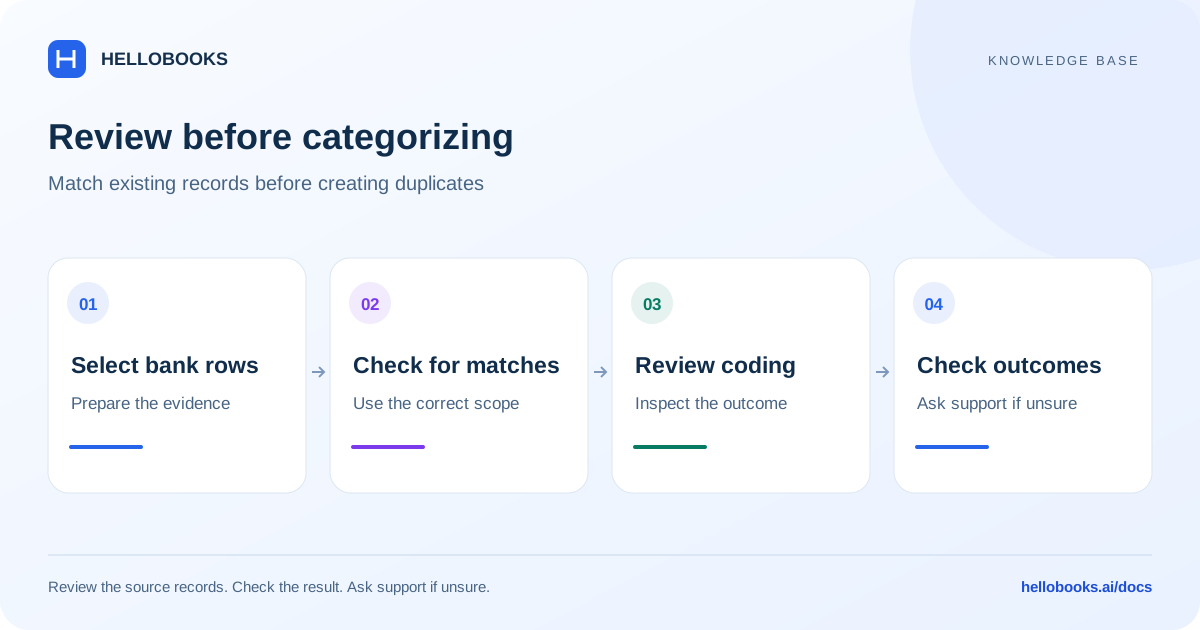
Before you categorize a transaction
Select the correct organization, entity, and bank account. Keep the bank statement, receipt, invoice, bill, or transfer reference available. Check the date, money-in or money-out amount, currency, and business purpose before choosing an account category.
An account category describes how the transaction belongs in your books. An AI suggestion or a matching amount is a starting point for review. If the transaction pays an invoice or bill already in HelloBooks, review the existing document match before recording a separate income or expense entry.
These steps use the reviewed HelloBooks Frontend V3 labels. Availability depends on your account, permissions, and entity configuration. If your screen differs or the correct accounting treatment is unclear, email hello@hellobooks.ai with the transaction reference.
Open the bank account and find the transaction
Use the transaction date, description, and amount together to identify the row. The same amount can occur more than once.
- Open Banking and select the bank account or choose View transactions on its card.
- Choose Reconcile Transactions to review uncategorized rows. Use All, Auto Match, or Unmatched to narrow the list.
- Choose List View if you want the table with Payee and Account Category. Use Filter or the match-type filter to reduce the list when necessary.
- Check the selected bank account and each row against your source document before changing any fields.
Choose a category and confirm one transaction
Payee identifies the customer or supplier. Account Category identifies the ledger account. Tax, Class, Location, and Project fields appear where the entity and view support them. Use the actual document and your accountant's policy to choose tax treatment.
The row's Categorize action uses the selected account or an available suggested account. A missing category prevents categorization. Saving field changes and marking the transaction as categorized are separate actions; check the resulting status.
- Check whether the row has a matching existing invoice, bill, or transfer. If it does, open Match and review that document before using Categorize.
- For a transaction that should be categorized directly, review or select the Payee and Account Category. Correct a suggestion when it does not match the transaction's business purpose.
- Review Tax and any applicable tracking fields. Do not infer tax eligibility from the bank description alone.
- Choose Categorize on that row when the values are correct. If you only want to save edited fields for further review, choose Save Changes and check that the row still has the intended status.
- Wait for the result. Open Categorized Transactions and verify the row's account category and transaction details. A missing result or error needs investigation before retrying.
Review a document match before creating another entry
Match and Categorize solve different tasks. Match opens the transaction's document review workflow. Categorize confirms its accounting category. If you select Categorize when a document match is available, HelloBooks can show Match Recommended with Review & Match Document and Force Reconcile actions.
Review the customer or supplier, document reference, currency, amount, and existing payment before deciding. Do not use Force Reconcile simply to dismiss a warning. If the document is already recorded or the match is ambiguous, stop and email hello@hellobooks.ai with both references.
A possible-duplicate warning means that another entry may already represent the transaction. Review both records before continuing. Categorizing the duplicate can create a second entry.
Categorize several transactions together
Bulk Edit applies an edited field to the selected rows. Use it only when those rows should share that value. Separate bank fees, customer receipts, transfers, and supplier payments when their accounting treatment differs.
A bulk operation can partly succeed. The result can state that some transactions were categorized while others could not be saved. Review the actual rows before selecting a retry batch.
- In Reconcile Transactions, select the intended rows and check the selection count.
- Turn on Bulk Edit. Review the selected rows before changing a field: the change applies to all selected rows.
- Set shared fields such as Account Category only when appropriate for every selected transaction. Check individual payees and tax treatment before applying them in bulk.
- With at least two rows selected and Bulk Edit enabled, choose a row's Categorize action. Review Confirm Bulk Categorization and its selected-transaction count, then choose Confirm.
- Read the completion or partial-success message. Check Categorized Transactions and the remaining Reconcile Transactions rows; retry only the rows that still need work.
Use Auto-Categorize and review the result
Auto-Categorize starts processing the selected transactions. A started or scheduled message is not proof that every selected row has finished. The number scheduled can be smaller than the number selected.
The reviewed interface checks that the company industry is available and that the AI-credit requirement is met. It can show Company industry information is missing or an AI-credit top-up message. Ask an organization administrator or hello@hellobooks.ai if the setup is unclear.
- Select the intended rows in Reconcile Transactions and choose Auto-Categorize.
- Wait while the rows show processing. Read the result summary and review the rows that remain unmatched or need attention.
- Inspect suggested payees, account categories, and document matches against the source evidence. Accept a suitable suggestion through the relevant Categorize or Match workflow; correct unsuitable values first.
- Check the final transaction status. If processing appears stuck or the outcome is uncertain, inspect existing records and contact support before starting the same operation again.
Examples: bank fees and a supplier payment
Fictional example: a bank statement contains three service charges of 12, 8, and 5 in one currency. Your accountant confirms that all three belong to the bank-charges expense account and specifies the tax treatment. Select only those three rows, use Bulk Edit for their shared category, review the count, and confirm categorization. The selected charges total 25; use that as a check against the statement, not as a new transaction to enter.
A separate 1,200 debit pays a supplier bill already recorded in HelloBooks. Review its Match and compare the supplier, bill number, currency, amount, and existing payment. Do not apply the bank-charges category just because that row is next to the three fees.
If two of the three fee rows succeed and one fails, verify the two successful rows and investigate the remaining one. Reprocessing all three without checking can produce an incorrect result.
Correct a mistake without losing the accounting trail
For edits that have not been saved, Discard Changes removes the pending changes. It does not undo a completed categorization.
Categorized Transactions can show Undo transaction. The reviewed interface disables undo for Wave transactions and rows reconciled with a closing period. Do not assume that every posted transaction can be reversed from this screen.
If a row is linked to a journal entry, a correction or undo can open a linked-journal dialog. Deleting a journal entry and keeping it while unlinking the bank row have different accounting consequences. Cancel and ask your accountant or hello@hellobooks.ai if you are unsure which result is required.
After an approved correction, check the transaction, related invoice or bill, journal entry if present, and relevant reconciliation. Changing a category is not proof that every related balance has been corrected.
Troubleshooting and support
Account category is empty and required to categorize transaction means a valid account must be selected. Check the Account Category field and the source document. An unsuitable placeholder is not a completed classification.
If Categorize, Bulk Edit, or an expected field is missing, check the selected tab, selected rows, view, organization, entity, and your access. If a row is still processing, wait for its result before editing it.
For an uncertain match, duplicate warning, failed batch, locked period, or unexplained balance, email hello@hellobooks.ai. Include the entity, bank account name or masked reference, transaction dates and amounts, relevant document references, selected action, exact message, and expected category. Attach only redacted evidence. Opening an email draft does not submit a ticket; review and send it, then keep the support reply or reference.
Frequently asked questions
How do I categorize a bank transaction?
Open Banking, select the bank account, and use Reconcile Transactions in List View. Check for an existing document match first. For a transaction that should be categorized directly, review Payee, Account Category, and applicable Tax, then choose Categorize and verify the result in Categorized Transactions.
Does Save Changes categorize the transaction?
Save Changes saves pending field edits; it is separate from the row's Categorize action. Review the transaction status after saving. Use Categorize only when the category and any document-match checks are complete.
How can I categorize many transactions at once?
Select the intended rows in Reconcile Transactions and turn on Bulk Edit. Field changes then apply to all selected rows. With at least two rows selected, choose Categorize, review Confirm Bulk Categorization and its count, and choose Confirm. Check partial-success messages and retry only rows that still need work.
Should I match or categorize a payment for an existing bill?
Review Match first when the payment relates to a bill or invoice already in HelloBooks. Compare the document, party, currency, amount, and existing payment to avoid recording the transaction twice. Email hello@hellobooks.ai if the correct match is uncertain.
Does Auto-Categorize mean everything is finished?
No. Auto-Categorize starts processing, and the scheduled count can be smaller than your selection. Review the resulting suggestions, matches, and transaction statuses. A started message does not prove every transaction was successfully categorized.
Why does Auto-Categorize ask for industry information or credits?
The reviewed interface requires company industry information and checks AI credits before starting selected-row auto-categorization. Ask an organization administrator or email hello@hellobooks.ai if either requirement is unclear. Do not assume retrying fixes missing setup.
Can I undo a wrong category?
Unsaved edits can be discarded. A completed categorization requires its supported correction workflow; Undo transaction is unavailable for Wave rows and closing-period-reconciled rows in the reviewed interface. A linked journal entry can require a separate accounting decision. Email hello@hellobooks.ai if you are unsure.
Why did only some selected transactions get categorized?
Bulk categorization can partly succeed, and a missing account category can prevent processing. Read the result message, inspect successful and remaining rows, and retry only unresolved transactions. Send the exact message and transaction references to hello@hellobooks.ai when the result is uncertain.
Can the chatbot choose the correct tax or ledger account for me?
The public knowledge base explains the workflow but cannot inspect your books or determine the correct treatment from a short description alone. Use the source document and your accountant's guidance. For account-specific help, email hello@hellobooks.ai with redacted transaction details.