

Purchases · Help
How to prepare purchase orders, goods receipts, and supplier bills
Connect the supplier order, goods receipt, and bill; review quantities and descriptions; and check approval before recording payments.
On this page
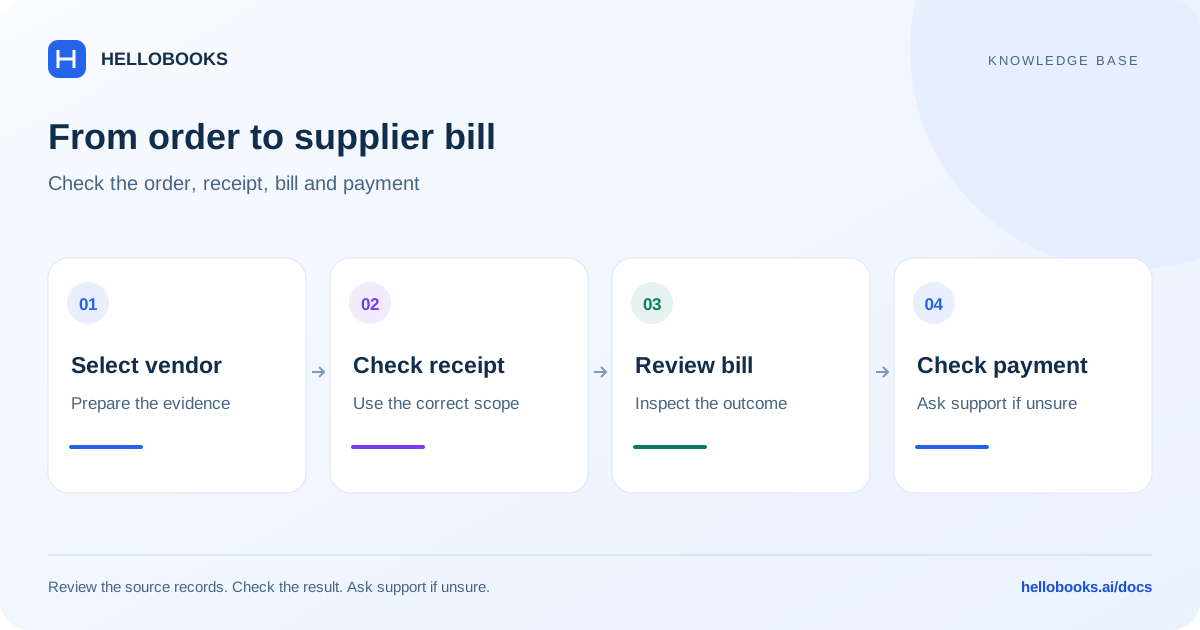
Prepare the supplier evidence
Select the correct organization and entity. Have the supplier's invoice, purchase order, delivery note or goods receipt, currency, dates, and agreed payment terms ready. Check whether the bill already exists or was created from an uploaded document before creating another.
A purchase order records what you order, a GRN records goods received, and a bill records what the supplier charges. Use each document for its own purpose and reconcile differences. Saving a bill does not prove that the goods arrived or that a bank transfer occurred.
These steps follow the reviewed Frontend V3 forms. Field labels, tax requirements, permissions, and eligible source documents can vary by entity. Ask hello@hellobooks.ai when the correct accounting or operational treatment is uncertain.
Prepare the purchase order
In the purchase-order form, select the supplier in From and review PO Number, PO Date, Delivery Date, Reference, Currency, and the delivery address. Review Item, Description, Qty, Unit Price, Account, Tax Rate, Discount, and Amount for each line.
Use descriptions that identify the goods or service, specification, and agreed terms. A fictional example is Printer paper A4, 80 gsm, 10 packs, purchase agreement PO-041. The description and quantity must match what you intend to order.
Choose Save when preparing the order. Where authorized, use Save & submit for approval or Mark as Approved and verify the resulting status. The reviewed form requires an account when approving a purchase-order line. Approval is separate from supplier delivery and payment.
Record and verify the goods receipt
The GRN workflow supports creating a receipt from a purchase order or bill. Select the applicable eligible source and compare the displayed items with the physical goods and delivery note. This guide is an orientation to the receipt fields; it does not establish warehouse-specific lot, quality, or stock-posting rules.
Review GRN Number, GRN Date, Delivery Note, Received By, Quality Status, and Remarks. Vehicle Number and Driver Name are available when useful. Confirm quantities actually received rather than copying ordered quantities without checking.
After Save, reopen the GRN and check the source reference, items, quantities, date, and status. For partial deliveries, damaged goods, incorrect units, or unclear stock effects, resolve the receipt with your operations team or hello@hellobooks.ai before assuming the order is fully received.
Create and review the supplier bill
Use the supplier's bill number and invoice evidence to identify the obligation. Review any data copied from a source document or extracted from an upload.
- Open Bills in Purchases and choose New Bill.
- Select the supplier and review the bill number, Date, Due Date, Reference, and currency.
- If the bill relates to existing purchase orders or GRNs, use the source-selection workflow and review the selected references and copied lines.
- Check Item, Description, Qty, Unit Price, Account, Tax Rate, Discount, and Amount against the supplier's bill. Review the tax or Amounts are settings that apply to the entity.
- Review the totals, due date, payment terms, and any differences from the order or receipt before choosing Save.
- Reopen the saved bill and confirm its reference, supplier, amount, currency, status, and related documents.
Check orders, receipts, and bill differences
When selecting multiple purchase orders or multiple GRNs for a bill, the reviewed form requires the same vendor and currency. Use separate bills where those requirements do not match.
Compare ordered quantity, received quantity, billed quantity, unit price, discount, tax, and freight or other charges. The correct bill amount should follow the supplier evidence and the approved resolution of differences, not whichever imported total appears first.
Do not assume selecting a source closes an order, completes a receipt, or prevents all duplicate billing. Reopen the saved documents and check their state. Escalate unexplained quantity or price differences before approval.
Approve the bill, then record the actual payment
Save or Save as Draft prepares the bill; Mark as Approved is the separate approval action available according to your access and record state. Check the final status. This guide does not rely on a timed message or a menu label as proof that a review request was sent.
For several eligible unpaid bills, follow How to record bulk bill payments in HelloBooks. That guide covers Bills > Awaiting Payment or Partially Paid > Pay > Batch Pay Bills, including currency grouping and allocation checks.
For one or several bills, confirm the actual bank payment separately. Recording an outgoing payment records the accounting event; it does not, by itself, transfer money. Check supplier credit allocations and existing payments before recording the remaining amount.
Example: an order, receipt, and partial bill payment
Fictional example: you order 10 units at 100 each, with no tax or discount in this simplified example. The supplier delivers and bills all 10 units. Compare the purchase order, goods receipt, and bill: each should support the quantity of 10, and the expected bill amount is 1,000.
After approval, an actual payment of 600 should be recorded against the bill through the payment workflow. The expected unpaid balance is 400 after a successful application. Keep the bank reference and verify the saved payment; do not reduce the bill total to 600 merely because the payment is partial.
If only 8 units arrived, resolve the quantity difference and record what was actually received. Do not mark the receipt complete simply to make it match the invoice.
Troubleshooting and support
Check required supplier, date, number, currency, line description, quantity, rate, and account fields. Approval can require information that was not needed for a draft. Check your access and the record's state if an action is unavailable.
If an upload, save, line update, or credit application reports an error after creating a record, inspect the bill list and existing lines before retrying. If the system says the bill was saved without returning an ID, reopen the list first.
Email hello@hellobooks.ai with the entity, supplier reference, PO/GRN/bill numbers, dates, currencies, expected quantities and totals, exact error, and what you tried. Include redacted evidence. Opening an email draft does not submit a confirmed ticket; review and send it and keep the reply.
Frequently asked questions
What is the difference between a PO, GRN, and bill?
A purchase order records what you order, a GRN records the goods received, and a bill records the supplier's charge. Compare their quantities, references, prices, and relevant totals. Saving any one of them does not prove the other stages are complete.
Can I create a bill from several purchase orders?
The reviewed bill form supports multiple source purchase orders and requires the same vendor and currency. Review copied lines, quantities, and prior billing before saving. The same vendor and currency restriction applies to multiple GRNs.
How do I pay several supplier bills?
Use the bulk-bill-payment guide. Select eligible bills in Awaiting Payment or Partially Paid, choose Pay, review From account, date, method, and allocations in Batch Pay Bills, and Record payment. Verify bank transfer separately; the accounting entry does not itself send money.
Does Save on a supplier bill mean it is approved or paid?
No. Check the bill's actual status after saving. Mark as Approved is a separate action where available, and the payment record is another separate step. Verify the actual bank payment and any credit allocation before recording an amount as paid.
What if the goods received do not match the supplier bill?
Compare the order, actual receipt, supplier invoice, and relevant units, prices, taxes, and charges. Resolve the discrepancy with your operations or accounting team before approval. Email hello@hellobooks.ai if the supported correction or receipt workflow is unclear.