

Payments · Help
How to create, allocate, and review sales and purchase credit notes
Keep customer and supplier credits separate, choose the correct credit purpose, allocate only to eligible documents, and distinguish a credit application from a cash refund.
On this page
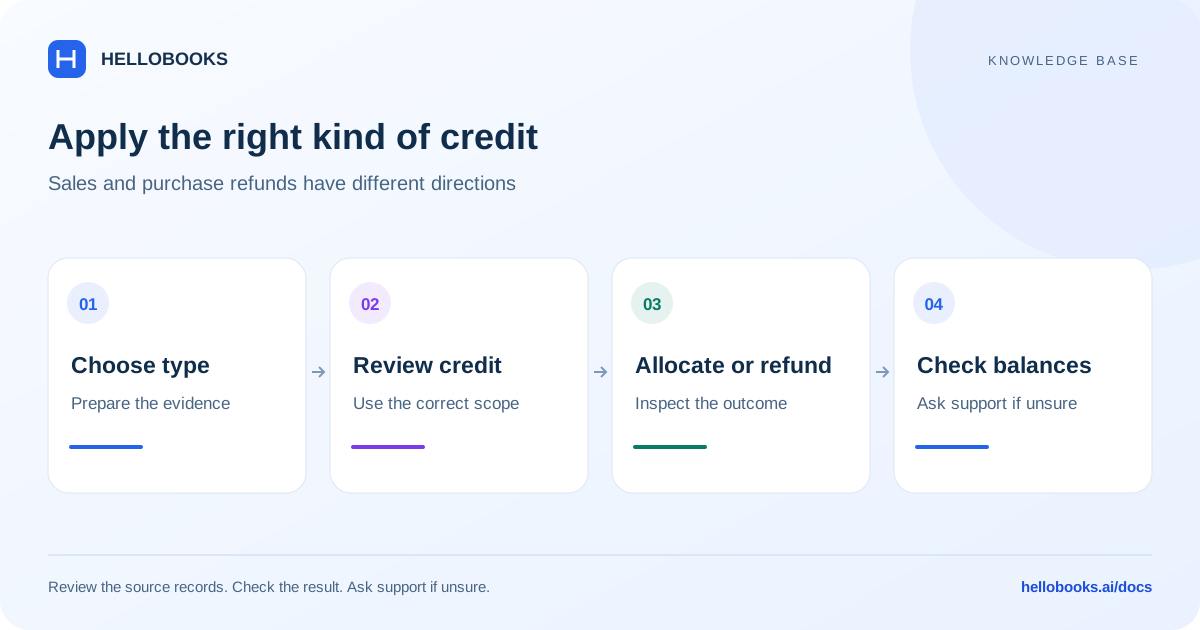
Choose a customer credit or supplier credit
Use Invoice Credit Notes in Sales for customer invoice adjustments. Use Bill Credit Notes in Purchases for supplier bill adjustments. A customer credit applies to eligible invoices for that customer; a supplier credit applies to eligible bills for that supplier.
Confirm the organization, entity, party, currency, reason, original document, tax treatment, and available balance. Check existing credits, allocations, and refunds before creating another. Applying a credit to an unpaid document and recording a cash refund are different transactions.
These instructions follow the reviewed Frontend V3 screens. They do not determine the correct tax treatment or prove that a bank refund occurred. Email hello@hellobooks.ai if the appropriate document or accounting treatment is unclear.
Create and review the credit note
The form's Purpose distinguishes Return (Against Invoice or Bill) from Adjustment / Claim (New Ref). A return requires the relevant original document. An adjustment uses Adjustment Amount and has different document-selection behavior. Do not switch purpose simply to bypass a validation error.
- Open Invoice Credit Notes and choose New Invoice Credit Note for a customer, or Bill Credit Notes and New Bill Credit Note for a supplier.
- Select the correct party in To, review Purpose, and choose the original invoice or bill when the return workflow requires it.
- Check Credit Note Number, date, Reference, and Currency. For a return, review the relevant items, quantities, descriptions, accounts, and tax. For an adjustment, review Adjustment Amount and the reason.
- Choose Save for a draft, or use Mark as Approved only when authorized and all values are correct.
- Reopen the saved credit note and verify its purpose, party, currency, amount, status, and original-document reference before allocating or refunding it.
Allocate credit to eligible invoices or bills
The allocation screen filters documents by party, currency, outstanding amount, and eligible status. A sales credit must match the customer; a purchase credit must match the vendor. Tally return credits linked to an original document are restricted to that document in the reviewed flow.
Allocate Credit on the list requires an eligible approved or partly applied credit with a remaining balance. Draft, cancelled, already exhausted, or otherwise ineligible records can lack the action. Review the actual record rather than assuming every credit is allocatable.
- Open the eligible credit note and choose Allocate Credit.
- Review the displayed party, Credit Note Number, Status, and Outstanding Balance.
- Find the intended invoice or bill and enter its Amount to Credit. Repeat for additional eligible documents when the credit can be distributed.
- Check each amount against that document's amount due and check the total against the remaining credit. Do not exceed either balance.
- Choose Allocate Credit, wait for the result, and reopen the credit note and affected documents to verify the allocations and remaining amounts.
Record a refund using the correct direction
Allocating credit reduces a document's outstanding balance. A cash refund involves money moving separately and needs its own payment evidence. Do not allocate and refund the same credit amount twice.
For sales credits, the allocation screen can offer Record Outgoing Payment because a customer refund is money leaving your business. Review the account, payment date, amount, payment currency, and remaining credit. Do not assume the accounting action initiates a bank transfer.
For purchase credits, the credit-note preview provides Issue Refund for eligible records. The separate form uses Refund Amount, Payment Method, Deposit Account, Payment Date, Reference, and Comment, followed by Post Refund. A supplier refund is money coming into your business. Cheque requires its cheque details. Verify the actual receipt and the credit's remaining balance before recording it.
Keep mixed-currency refunds separate from simple same-currency examples. Confirm the payment currency, document currency, available exchange rate, and applied amount. If the actual transfer, direction, eligible credit, or rate is uncertain, email hello@hellobooks.ai before submitting the record.
Example: split an available credit across two invoices
Fictional example: an eligible customer credit has 300 remaining. Invoice A for the same customer and currency has 200 due; Invoice B has 500 due. If the credit is eligible for both documents, allocate 200 to A and 100 to B. The expected remaining balances after successful allocation are zero on the credit, zero on A, and 400 on B.
A credit of 300 from a different supplier cannot be used for those customer invoices. Likewise, a return credit restricted to one original document must follow that restriction rather than this multi-invoice example.
If the same customer instead receives a cash refund, record only the actual refunded amount through the applicable refund workflow and verify the bank evidence. Do not also apply that amount to the invoices.
When there are no eligible documents
Check the credit's party and currency, the invoice or bill's outstanding balance and status, and whether a return is tied to its original document. A fully paid document has no unpaid balance for a new credit application.
The form can change the purpose when a paid document is selected, and a linked return with no eligible document can show refund guidance. Review the saved purpose and balance; do not force an allocation to an unrelated document or assume that the absence of a document means the credit was refunded.
If the expected document is missing, send its reference and the credit-note reference to hello@hellobooks.ai. Check existing allocations before trying again.
Check the result and request help when uncertain
After allocation or refund, compare the credit note, affected invoices or bills, payment history, and actual bank evidence. Status labels can differ between sales and purchases; the remaining amounts and linked records are essential checks.
For a failed or partial-looking result, incorrect purpose, wrong party, tax correction, or an allocation that needs reversing, email hello@hellobooks.ai. Include the entity, credit-note and original-document references, purpose, amount, currency, exact message, and expected outcome. Do not create a replacement credit until you have checked the existing result.
Opening a support email draft does not send the request or create a confirmed ticket. Review and send the email and keep the support reply or reference.
Frequently asked questions
Can I apply one credit note to several invoices?
An eligible customer credit can be allocated across eligible invoices for the same customer and currency, within the credit and invoice balances. A linked Tally return credit is restricted to its original document in the reviewed flow. Review Amount to Credit for each document and verify the saved result.
Can a supplier credit pay a customer's invoice?
No. Sales credits apply to the same customer's eligible invoices, and purchase credits apply to the same vendor's eligible bills. Do not mix customer and supplier credits or currencies. Email hello@hellobooks.ai for an unusual accounting situation.
Does allocating a credit send a refund?
No. Allocation applies an available credit to an unpaid document. A cash refund needs its own payment record and bank evidence. Customer refunds are outgoing; supplier refunds are incoming. Do not allocate and refund the same credit amount twice.
How do I record a supplier refund?
For an eligible purchase credit, open its preview and choose Issue Refund. Review Refund Amount, Payment Method, Deposit Account, Payment Date, and references, then Post Refund only for the verified supplier receipt. Check the remaining credit and actual bank receipt separately.
Why is an invoice missing from Allocate Credit?
Check the party, currency, outstanding balance, eligible status, and any restriction to the original return document. A fully paid invoice has no unpaid balance for a new credit application. Email hello@hellobooks.ai with the invoice and credit references if the expected document is still missing.