

Items & stock · Help
Create items and write useful descriptions
Set up products or services, units, descriptions, prices and opening stock in the correct entity.
On this page
Choose a product or service
Open Inventory and its item list. Check the selected organization and entity, and search for the name or SKU before adding another item. You need item-creation permission and any required inventory module access.
Choose Product for a physical item or Service for work that does not track inventory. Item terminology can change with the industry profile; for example, a pharmacy may show Medicine. The underlying setup still needs the correct units and accounting treatment.
Create an item
The form has Basic Info, Pricing & Costing and other sections according to item type and enabled features. Next moves through the sections; Create now attempts creation from an earlier section and still validates required fields.
- Open the add-new-item form from the item list.
- In Basic Info, enter the item name, review or generate its SKU, and select Item Type. Choose Item Sub-Type when it is shown and required.
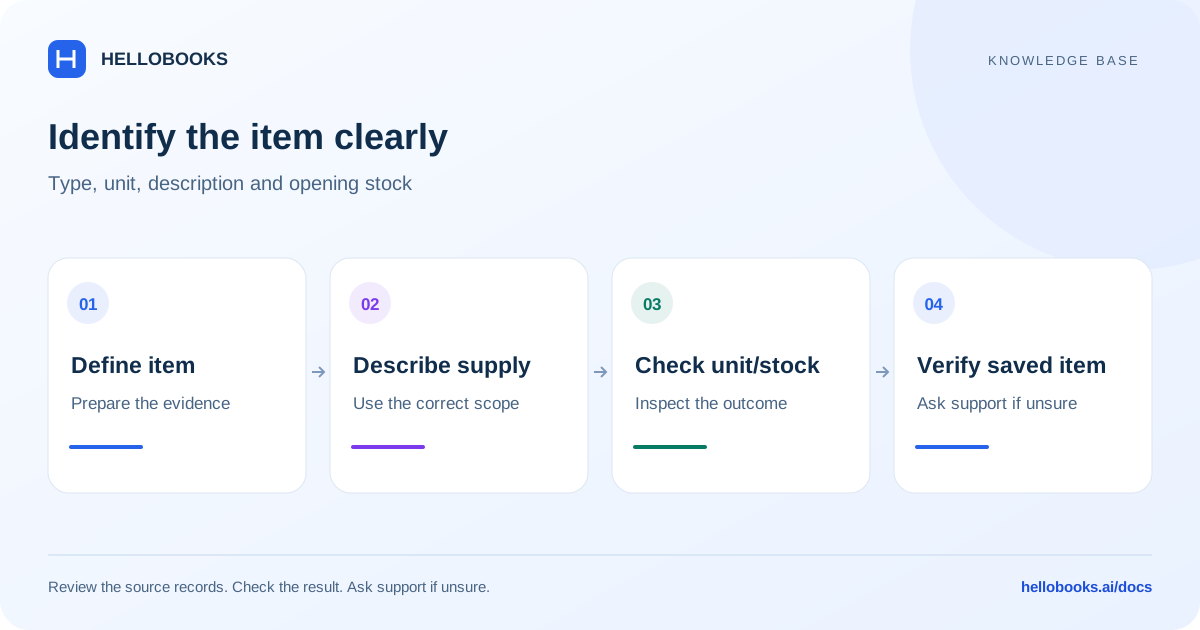
- Enter Description, Category of Unit and Unit of Measure. Select units that match how the item is bought, stocked and sold.
- Review Pricing & Costing, any Inventory Settings, Variants, Point of Sale, and Vendor & Tax sections shown for this item.
- Use the create action after reviewing all required fields. Wait for confirmation, reopen the item, and verify the saved type, description, unit and prices.
Write a description that identifies what was supplied
The reviewed item form requires a description of 1–500 characters and does not allow emoji. Describe the specification, pack size or service scope a reader needs; the SKU is an identifier, while the description explains the item.
For a product, use a description such as “Cotton work shirt, blue, size M, one piece.” For a service, use “Monthly bookkeeping review for September; one entity.” These are fictional examples. Do not put private customer information or bank credentials into an item description. Review the description again on the actual sales or purchase document; do not assume a master-data edit rewrites historical documents.
Review prices and opening stock
Purchase Price and Selling Price must be non-negative numbers when supplied. For a tracked product, enter a non-negative Current Stock value, or a non-negative opening quantity in each brand row when the multi-brand grid replaces that field. Zero is a valid starting quantity. Service items do not track inventory.
When entering opening stock, use the correct as-of date where requested. If the Warehouse selector is shown and opening quantity is positive, select the warehouse. Location choices belong to that warehouse; changing the warehouse clears the old location selection. Review the newly selected location before saving.
Existing stock is owned by stock movements. Do not try to correct posted quantity simply by changing a descriptive field on an existing item. Use the supported inventory movement or adjustment process, with help if the procedure is unclear.
Example: start with ten units
For a fictional tracked product, record 10 pieces at the verified opening location and date. After a supported receipt of 5 and a sale of 3, the expected quantity is 12 pieces. Check quantity at the correct warehouse as well as the entity total.
Stock value is a separate check: do not infer a valuation method or automatic ledger result from a displayed selling price. Use the applicable inventory valuation report and trace movements when quantities or values differ.
Resolve a rejected or uncertain save
“Category of Unit is required”, “Description is required”, “Unit of Measure is required” and “Warehouse is required when Current Stock is entered” identify different checks. Correct the named field instead of repeatedly submitting an unchanged form.
If a request times out, search the item list first. A timeout does not prove the item was not created. Keep the original SKU and error details for support.
When to contact support
If a field, permission, saved value or resulting balance differs from this guide, email hello@hellobooks.ai with the entity, screen, record reference, expected result and exact message. Do not send passwords, one-time codes or full bank details. Opening an email draft does not create a confirmed ticket.
Frequently asked questions
How do I create an item?
Open Inventory’s item list and its add-new-item form. Enter the name, type, required sub-type, description, Category of Unit and Unit of Measure; review prices and any tracked opening stock and location. Create the item, then reopen it to check the saved values.
Are product descriptions required?
The reviewed item form requires a description of 1–500 characters without emoji. Use a clear specification or service scope and check the wording again on the actual document.
Does a service need opening stock?
No. The service form does not track inventory. A physical product with inventory tracking enabled has separate opening-stock, date and location checks.