

Apps · Help
Upwork: import reports, map projects, and reconcile settlements
Review an Upwork report through Upload, Projects, Configure, and Review & Create.
On this page
Prepare the report and profile
Open Upwork from the app launcher. Confirm the entity, report period, Upwork account or profile, currency, and the accounting approach used for these transactions.
Keep the original report unchanged and use a working copy if you need to inspect or correct its format. Before importing, check whether the same period or transactions have already been brought into HelloBooks.
Gross earnings, platform fees, refunds, and payouts are different amounts. Identify what the report contains so an imported invoice is not mistaken for a bank deposit.
Follow the import stages
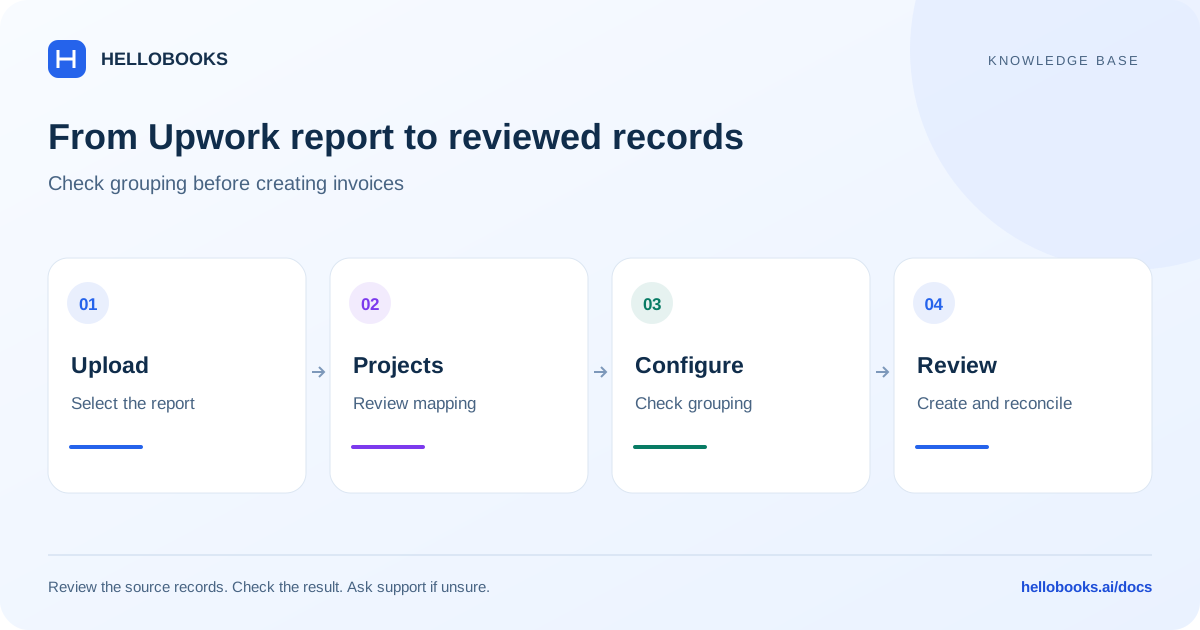
The import screen shows four stages: Upload, Projects, Configure, and Review & Create.
- In Upload, select the Upwork report and check that transactions were detected.
- In Projects, review how the clients or report data map to the intended HelloBooks projects.
- In Configure, choose the grouping approach and accounting settings that match your records.
- In Review & Create, inspect the proposed invoice groups and amounts before creating records.
- After creation, retain the result and references for reconciliation.
Check grouping before creating invoices
Grouping determines which report transactions are brought together. Review the customer, project, period, currency, and totals in each proposed group. A group that mixes unrelated clients or periods can make later payment allocation difficult.
Use a small, understood sample to verify the configuration before processing a large report. If the grouping is not what you expect, resolve the settings or mappings before creating records; do not plan to fix an unknown result afterwards.
Reconcile the bank payout
Compare created invoices or earnings with Upwork's fees, refunds, and settlement information, then compare the net payout with the bank.
For example, gross earnings of 1,000 and a fee of 100 can produce a net payout of 900 before other adjustments. The 900 bank receipt should not be interpreted as 900 gross revenue without checking the supporting report.
Upwork includes separate invoice-group and settlement areas. Use the settlement reference and reporting period to connect the operational result with the bank evidence.
Example: check invoice groups against a settlement
Illustrative example: a supported report contains two earnings groups of 600 and 400 in one currency, with total fees of 100 and no refunds or other adjustments. Reviewed earnings total 1,000, and the expected net settlement for those same transactions is 900.
In the review stage, confirm that the groups refer to the intended customers/projects and sum to 1,000. This is a check of the proposed records, not a requirement to merge unrelated clients or a promise that every grouping configuration behaves identically.
Match the 900 net amount to the settlement reference and bank evidence for the same payout. If the bank receipt is 880, investigate the 20 difference using the actual report, additional fees, currency conversion or settlement timing; do not assume the cause or reduce gross earnings to the bank amount.
Keep the original report, group settings, created record references and payout reference. If no matching result can be confirmed after an import, email hello@hellobooks.ai before uploading the same transactions again.
Resolve upload and mapping issues
If the import says no file was selected, choose the report again. If it reports an invalid format or no transactions found, compare the file with the supported input shown in the app. A message that Upwork is not connected needs the connection or profile checked.
For a mismatch, include the report period, profile, source totals, grouping settings, created record references, and payout reference in an email to hello@hellobooks.ai. Do not reimport the same report until existing results have been checked.
Frequently asked questions
Why is the payout lower than imported earnings?
Compare platform fees, refunds, other adjustments, and settlement timing. Reconcile gross earnings to the net payout before matching the bank receipt.
Should I upload the same report again after an error?
First check whether any records were created. Send the report period and result to support if the outcome is uncertain.
What should I check if earnings, invoice groups and the bank payout disagree?
Compare the same profile, transactions, currency and settlement period, then explain fees, refunds and other adjustments using the source report. Email hello@hellobooks.ai with the import/group and payout references if the difference is unresolved; do not reimport solely to change the totals.