

Sales · Help
How to create and review recurring invoices
Prepare a repeating-invoice template, set its frequency and due-date rule, review approval and sending choices, and check the generated invoices and schedule.
On this page
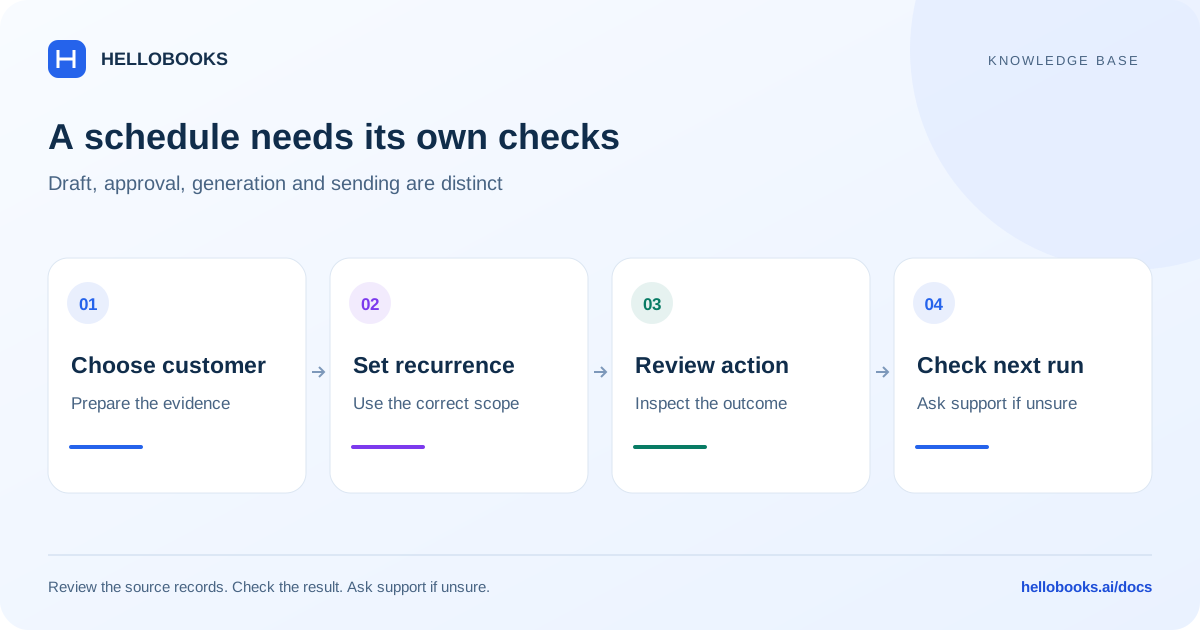
Before creating a repeating template
Use a repeating invoice for billing that follows a regular schedule, such as a monthly service. Confirm the correct organization and entity, customer, currency, agreed service period, prices, tax treatment, start date, end date if applicable, and payment terms.
Check that no existing template or invoice already covers the same customer and period. You need access to create invoices, and your plan must support Recurring Invoices & Bills. Editing an existing template requires invoice-edit access.
A repeating template, an individual generated invoice, and a delivered customer message are separate records or outcomes. Saving the template does not prove that a scheduled run occurred, an invoice was paid, or a message was received.
These instructions follow the reviewed Frontend V3 form. Schedule execution and delivery must be verified in your account. Email hello@hellobooks.ai if the fields differ or you need help confirming the schedule before relying on it.
Create the repeating invoice
The form uses Template Name to identify the recurring setup. Choose a name that identifies the customer and service without assuming it is the number of every generated invoice.
- Open Invoices in Sales, choose Repeating, and choose New Repeating Invoice. An empty list may offer Create Your First Repeating Invoice.
- Choose the customer in To. Review the billing and shipping details where applicable.
- Enter a clear Template Name and a Reference if useful. Review the Currency and the form's tax or Amounts are settings.
- Add the billed items and descriptions. Review Qty, Unit Price, Account, Tax Rate, Discount, and Amount for each line.
- Set the frequency, Invoice Date, Due Date rule, and optional End Date using the steps below.
- Review Save as Draft, Approve, or Approve for Sending before choosing Save. If sending is selected, review the message details before proceeding.
- Wait for the save result and return to Repeating. Reopen the saved template and compare the customer, lines, totals, dates, and recurrence with the agreement.
Set the frequency, invoice date, and due date
Repeat this transaction every combines a number with Day(s), Week(s), Month(s), or Year(s). For monthly billing, enter 1 and choose Month(s). The reviewed form accepts day intervals from 1 to 365, week intervals from 1 to 100, month intervals from 1 to 25, and year intervals from 1 to 5. Use whole-number intervals.
Invoice Date identifies the date used by the template. Some edit layouts label it Next Invoice Date. End Date (Optional) provides an end-date field. Check the saved schedule and generated invoice dates; the visible fields alone do not establish the scheduler's exact execution time or month-end behavior.
Due Date combines a number with one of four rules: day(s) after the invoice date, day(s) after the end of the invoice month, of the following month, or of the current month. For 15 days after an invoice, choose 15 with day(s) after the invoice date.
For a particular day of a month, use a valid day and review the calculated due date. The form rejects a current-month due day that is earlier than the invoice date's day. For variable month lengths, leap years, and time-zone-sensitive schedules, verify a representative generated invoice or contact support before relying on the result.
Review approval and sending separately from the schedule
Save as Draft, Approve, and Approve for Sending are approval choices on the form. Save as Draft is initially selected in the reviewed source. Approve for Sending opens message details during save and can send a customer message after the template is saved.
Check the customer, recipient, message, and attachment before completing a sending action. A saved template and a successful message are separate outcomes: the interface can report Invoice saved but message failed to send. If that occurs, inspect the saved template before trying again so you do not recreate it.
Do not use Save as Draft as a way to pause recurring generation. In the reviewed form, that choice does not turn off the automatic-generation setting. Approval choice alone also does not establish future email delivery behavior. If you need a setup that must not generate or send anything yet, ask hello@hellobooks.ai to confirm the supported scheduling configuration before saving it.
This guide does not promise that every scheduled invoice is automatically approved, delivered, or paid. Check each outcome using the saved template, actual invoice, and available communication result.
Example: a monthly service invoice
Fictional example: Northside Studio agrees to a monthly service of 1,000 in one currency, with no tax or discount in this simplified example. The agreed first invoice date is 1 October 2026 and payment is due 15 days after each invoice date.
Select Northside Studio, use a recognizable Template Name, enter one service line with Qty 1 and Unit Price 1,000, and choose the correct income account. Set the recurrence to 1 Month(s), Invoice Date to 1 October 2026, and Due Date to 15 day(s) after the invoice date. Review the approval and sending choice independently.
The example line total is 1,000, and an invoice dated 1 October has a due date of 16 October under that rule. These are the expected values to verify on the actual invoice. Confirm the next scheduled date from the saved template and inspect the first generated invoice; do not assume saving the template proves generation.
If the contract changes or ends, review the future schedule before the next billing period. Do not create a second template or remove prior invoices merely to change future billing. Ask support for the applicable schedule-change procedure when it is unclear.
Check the saved template and actual invoices
The Repeating list includes Next Scheduled, Frequency, End Date, Status, Auto Generate, and Last Generated. These values help identify a template that needs investigation, but an Active label or a Last Generated timestamp alone does not prove a successful invoice or delivery.
Check the actual invoice record for the intended customer and billing period. Compare the invoice date, due date, currency, line quantities, prices, tax, and total with the agreement. Confirm its approval state and communication result where relevant.
If the next scheduled time has passed and no invoice can be found, or you see a duplicate, collect the template name, expected period, displayed schedule, time zone, and any invoice references. Email hello@hellobooks.ai before recreating the template or manually generating a replacement.
Edit a template or request help stopping future invoices
In Repeating, open an eligible template by its Template Name or Edit action. Review the customer, line items, frequency, and dates, then choose Update. Reopen the saved template and confirm every intended change.
The reviewed list blocks editing archived or cancelled templates and checks your edit permission. If you need to restore an archived template, change a cancelled setup, pause generation, or stop future messages, email hello@hellobooks.ai for the supported procedure in your account.
Do not assume that a template edit changes invoices that were already generated. Review existing invoices separately. Changing dates, archiving, cancelling, and deleting can have different consequences; this guide does not treat any of them as a verified universal pause button.
If an update reports a line-item error, inspect the saved template and all its lines before retrying. A warning can require checking which parts of the update completed.
Troubleshooting and support
For validation errors, check the customer, Template Name, currency, Invoice Date, frequency and interval, Due Date number and rule, and tax or Amounts are selection. Each line needs a description, a positive quantity and rate, and an account in the reviewed form.
If creation is unavailable, check invoice-create access and the Recurring Invoices & Bills plan entitlement. If Edit is unavailable, check edit access and whether the template is archived or cancelled.
For missing scheduled invoices, duplicate invoices, delivery failures, date differences, or stopping future runs, email hello@hellobooks.ai. Include the entity, template name, customer reference, frequency, expected date and time zone, displayed Next Scheduled value, affected invoice references, exact error, and what you have tried. Redact private customer information and do not include credentials.
Opening a support email draft does not send the request or create a confirmed ticket. Review and send it, then keep the support team's reply or reference.
Frequently asked questions
Where do I create a recurring invoice?
Open Sales, then Invoices and Repeating. Choose New Repeating Invoice or Create Your First Repeating Invoice, complete the customer, template, lines, frequency, dates, and approval choice, then Save. Creation requires the relevant invoice access and Recurring Invoices & Bills entitlement.
How do I invoice a customer every month?
In a New Repeating Invoice, set Repeat this transaction every to 1 Month(s). Complete the customer, items, Invoice Date, Due Date rule, and any end date. Review approval and sending before saving, then check the saved schedule and first actual invoice.
How do I set payment terms for a repeating invoice?
Use the Due Date number and rule. For example, choose 15 with day(s) after the invoice date for payment 15 days after each invoice date. Other rules use the end of the invoice month or a day of the current or following month. Check actual due dates, especially around month ends.
Does Save as Draft pause recurring invoices?
No. In the reviewed form, Save as Draft is an approval choice and does not turn off automatic generation. It also does not establish future email-delivery behavior. If nothing should generate or send yet, email hello@hellobooks.ai to confirm the supported schedule configuration before saving.
Does Approve for Sending send a message?
Approve for Sending opens message details during save and can send a customer message after the template is saved. Review the recipient, message, and attachment before proceeding. Check the save result and message result separately; neither proves future scheduled delivery.
Why was my recurring invoice not generated?
Check the saved template's Status, Auto Generate, Next Scheduled, frequency, and end date, then look for the actual invoice for that customer and period. A displayed status or timestamp alone does not prove successful generation. Email hello@hellobooks.ai with the template and schedule details before recreating it or issuing a replacement.
How do I pause or stop recurring invoices?
This guide has not verified a self-service pause control for every account. Do not rely on Save as Draft to stop generation or future messages. Email hello@hellobooks.ai with the entity, template name, intended stop date, and displayed next run so support can confirm the correct procedure.
Can I edit an existing recurring template?
Open an eligible template from Repeating by Template Name or Edit, make the changes, and choose Update. Editing requires access and is blocked for archived or cancelled templates in the reviewed list. Reopen the saved result and review existing generated invoices separately.
Does changing a template change invoices already created?
Do not assume it does. The template and generated invoices are separate records. Review existing invoices separately and email hello@hellobooks.ai if both past billing and the future schedule need correction.
What if the template saved but the message failed?
Inspect the saved template first; do not create it again just to retry sending. Keep the exact message failure and relevant customer or template reference, then email hello@hellobooks.ai for the supported retry procedure.