

Payments · Help
How to record bulk bill payments in HelloBooks
Record payments against several supplier bills, control each allocation, and check the remaining balances.
On this page
Before recording a bulk bill payment
Use this workflow when supplier bills already exist and you need to record the amounts paid against them. Have the payment date, source account, payment method, transaction reference, and the allocation to each bill ready. Confirm that you are working in the correct organization and entity.
A payment entry records an accounting event. It does not, by itself, send money from the bank. If the payment has already been recorded, inspect that entry before creating another. Bills that still need approval should complete the normal approval process first.
Record the payment
Use bills in the same currency for each batch. If the selection has more than one currency, HelloBooks asks you to pay them in separate batches.
- Open Bills and choose Awaiting Payment or Partially Paid.
- Select the bills and choose Pay. The next page is Batch Pay Bills.
- Choose From account, Payment date, and Method. Enter a Reference and Comment if useful.
- Review the Total, Paid, and Remaining columns. Set Allocation for each bill to the amount actually paid.
- Check the batch total against the payment evidence. Choose Record payment.
- Wait for the confirmation, then reopen the affected bills and check their payment details and remaining balances.
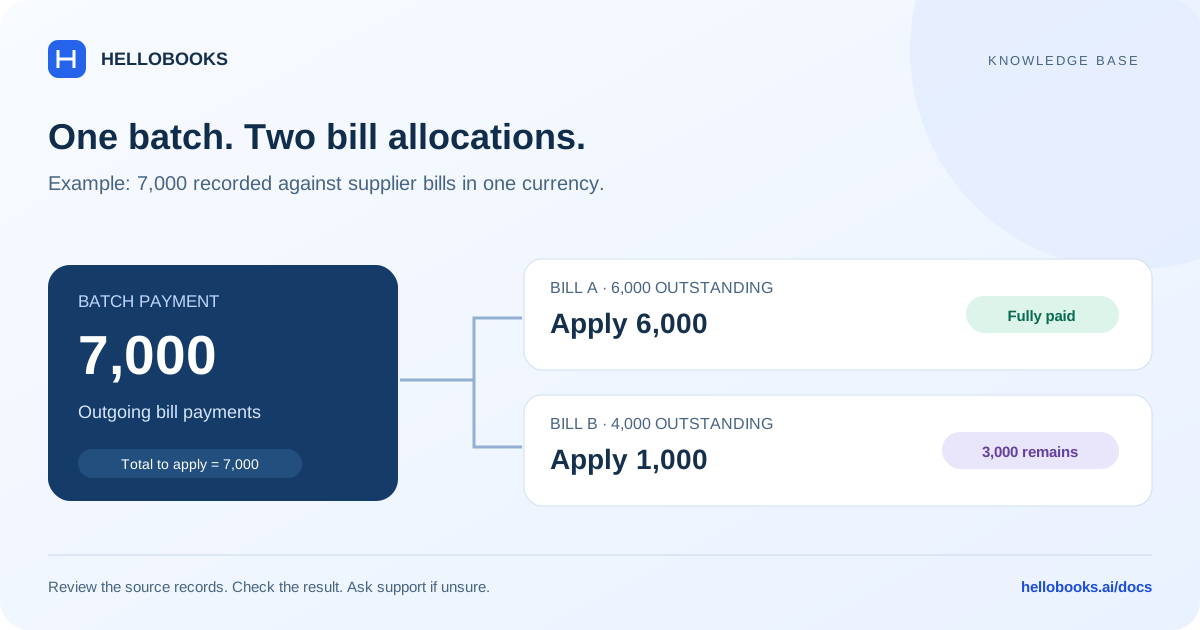
Example: one fully paid bill and one partial payment
Bill A has 6,000 outstanding and Bill B has 4,000 outstanding, in the same currency. A payment of 7,000 can be allocated as 6,000 to A and 1,000 to B. The expected remaining balances are zero for A and 3,000 for B.
Review the supplier's remittance instructions before deciding the split. Do not assume the system should allocate to the oldest bill when the supplier has specified a different allocation.
If the payment cannot be recorded
Check the message on the page. A source account, payment date, and payment method are required. The total must be greater than zero, and an individual allocation must not exceed the remaining balance on that bill.
The Pay action appears for selected bills in Awaiting Payment or Partially Paid. If it is missing, check the tab and selection. If your screen instead offers Make Payment, that is a separate workflow with Cheque and Batch payment options; contact support if you are unsure which route applies.
Bank files and bank confirmation
Where Generate bank file is available, it prepares a file for your bank's upload and authorization process. Downloading it does not confirm payment, and does not itself record the accounting entry.
Before submitting any file, compare its beneficiary details and amounts with the intended payments. In particular, do not assume that edited partial allocations carry into an exported file. Keep the bank's result and payment references for reconciliation.
Frequently asked questions
Can I pay part of a bill in a batch?
Yes. Set its Allocation to the amount paid, within its remaining balance. After recording, check that the unpaid portion remains outstanding.
Can I combine bills in different currencies?
Use a separate batch for each currency. The Batch Pay Bills screen rejects mixed-currency selections.
Does Record payment send a bank transfer?
It records the accounting payment. Confirm the actual transfer separately with your bank or payment provider.