

Sales · Help
How to prepare quotes, sales orders, and customer invoices
Choose the right sales document, prepare clear invoice descriptions, review source documents and totals, and keep saving, approval, delivery, and payment separate.
On this page
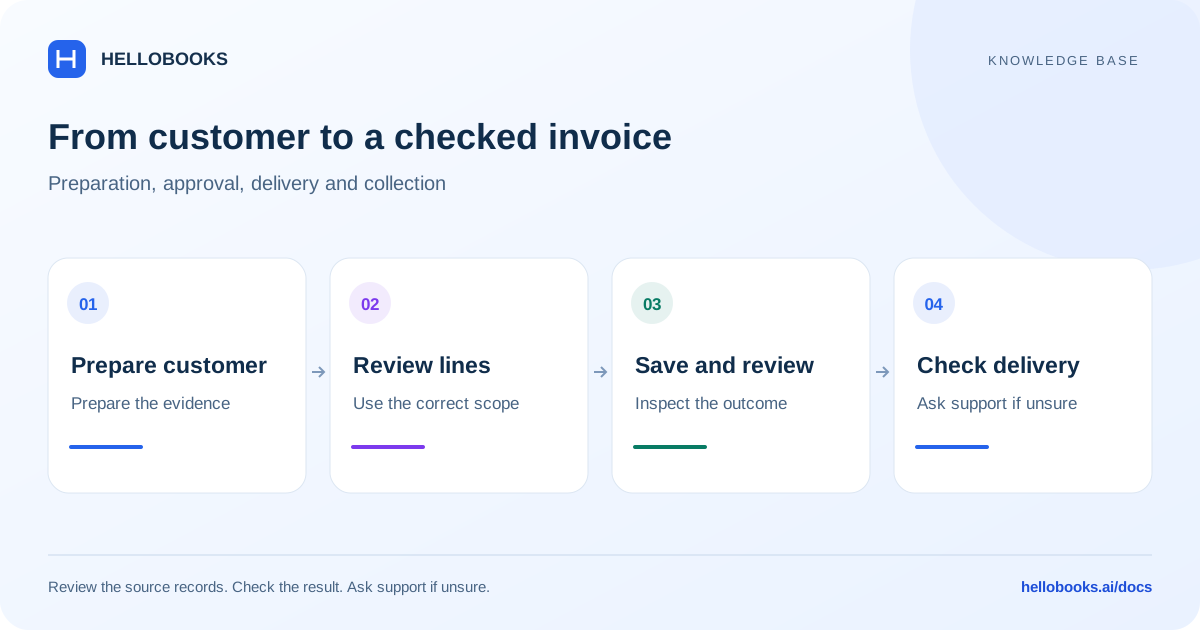
Choose the document for the task
Use a quote to present proposed prices and terms, a sales order to record agreed ordering details, and an invoice to bill the customer. A delivery challan records goods being delivered and has its own workflow. Do not assume one document's creation completes the next stage.
Select the correct organization and entity. Confirm the customer, currency, tax treatment, billing and delivery addresses, contract or order reference, and whether another document already covers the same work. These steps describe the reviewed Frontend V3 forms; permissions, industry labels, and local tax fields can differ.
Prepare a quote or sales order when needed
The New Quote form includes To, Quote Number, Quote Date, Expiry Date, currency, line items, and terms. Use an expiry date consistent with the offer and review the saved quote before sharing it.
The New Sales Order form includes the customer, SO Number, Order Date, Due Date, currency, line items, and terms. Review its Save and Mark as Approved actions according to your authority. Check the resulting record and status; a sales order is not evidence that the goods were dispatched, invoiced, or paid.
When the quote or order already exists, use the invoice's source-document selection rather than entering another unrelated copy. If a document is unavailable, check its party, currency, current status, and previous conversion before contacting hello@hellobooks.ai.
Create and review the invoice
Check existing invoice numbers and source documents first to avoid billing the same work twice.
- Open Invoices in Sales and choose New Invoice.
- Select the customer in To, then review Invoice Date, Invoice Number, Due Date, and Currency.
- If billing an existing quote, sales order, or delivery challan, use Select Quote, SO, or DC and choose the relevant source documents. Review every copied line and reference.
- Add or review Item, Description, Qty, Unit Price, Account, Tax Rate, Discount, and Amount. Check country-specific fields such as HSN/SAC or invoice class only where applicable.
- Review LineItems Amounts are and the invoice totals, terms, and customer details. Ensure the due date is not before the invoice date.
- Choose Save for a draft or use the authorized approval action when the invoice is ready. Reopen the saved invoice and verify its status, total, and references.
Write descriptions that explain what the customer is paying for
Use Description to identify the product or service, period, quantity basis, and relevant order or milestone. The reviewed invoice validation accepts a description or item on a valid line, but a readable description helps the customer and the accounts team understand it.
For a service, a useful fictional description is Bookkeeping service for September 2026, monthly package, agreement NS-04. For goods, use an identifiable item or SKU and its specification; keep the billed quantity and unit consistent with the order and delivery evidence.
Review descriptions copied from items, quotes, or scanned documents. A successful extraction or copied field is not proof that its wording, account, quantity, or tax is correct. Do not insert banking credentials or unrelated private information into invoice text.
Convert existing documents carefully
The invoice form provides Select Quote(s), Select Sales Order(s), and Select Delivery Challan(s). For a multi-document selection, the reviewed form rejects different customers or different currencies. Prepare separate invoices when those constraints do not match.
Check the documents' outstanding or previously billed quantities and the copied invoice lines before saving. A source selection does not establish that every item should be billed in full. If a source has no lines, cannot be selected, or has already been billed, investigate before manually copying it.
A new invoice is a separate record. After saving, keep both the invoice reference and the originating quote, order, or challan reference so another person can trace the transaction.
Check saving, approval, customer delivery, and payment separately
Save and Save as Draft prepare a draft. Where available, Save & submit for approval follows the invoice approval path, while Mark as Approved is the approval action. Use only the action appropriate to your permission and review process, and check the resulting status.
A saved or approved invoice is not proof that the customer received it. Review the actual sharing or sending interface, recipient, attachment, and result before treating it as delivered. This guide does not treat Save and get link as a verified payment-link delivery workflow.
Recording an incoming payment is a separate task. Use the incoming-payment guide when a new customer receipt must be applied to one or more invoices. A bank feed match, a customer message, and a paid invoice status should each be checked against the actual records.
Example: invoice a monthly service
Fictional example: one monthly bookkeeping service is agreed at 1,000 in the customer's currency, with no discount or tax in this simplified example. Enter Qty 1 and Unit Price 1,000, use the appropriate income Account, and describe the service period and agreement reference. The expected invoice total is 1,000.
Compare the saved invoice with the agreement, confirm its approval state, and verify customer delivery separately. If the customer later pays 600, record the actual receipt through the incoming-payment workflow and expect 400 to remain outstanding after a successful application. Do not change the invoice total merely to match a partial payment.
Resolve validation errors and uncertain results
Check the customer, dates, number, currency, required line fields, account selection for approval, and the totals. If a source selection mixes customers or currencies, separate the documents. If the app reports that an invoice was saved without returning an ID, reopen the invoice list before attempting another creation.
For duplicate numbers, failed updates, unclear tax, source conversion problems, approval access, or sending uncertainty, email hello@hellobooks.ai. Include the entity, customer reference, invoice and source-document references, exact error, amount and currency, and expected result. Redact private information.
Opening a support email draft does not create a confirmed ticket. Review and send the email, then keep the reply or ticket reference.
Frequently asked questions
How do I create a sales invoice?
Open Sales > Invoices > New Invoice. Select the customer, review dates, number, currency, source documents and line details, then Save a draft or use the authorized approval action. Reopen the saved invoice and check its status, amount, and references.
What should I write in the invoice description?
Describe the product or service, billing period, quantity basis, and relevant order or agreement reference. For example: Bookkeeping service for September 2026, monthly package, agreement NS-04. Check copied or extracted descriptions against the actual agreement.
Can I combine several sales orders into one invoice?
The reviewed invoice form supports selecting multiple source sales orders, but they must share the same customer and currency. Review the copied quantities, prior billing, and references before saving. Ask hello@hellobooks.ai if a source document is unavailable or its remaining quantity is unclear.
Does approving an invoice send it or record payment?
Approval, customer delivery, and payment are separate outcomes. Check the approved invoice record, the sending result, and the actual receipt or bank match separately. Use the incoming-payment guide to record and allocate a new receipt.
Should I change an invoice total when the customer pays only part?
Record the actual partial receipt and apply it to the invoice through the payment workflow. Do not change the invoice total solely to match the amount received. Check the remaining balance and ask hello@hellobooks.ai if a genuine price adjustment is needed.