
Key takeaways
What this article covers, in order:
- Key takeaways
- What is the difference between desktop accounting and cloud accounting?
- Which is better for a small business in the United States?
- Desktop accounting vs cloud accounting: what should you compare before switching?
- What does cloud accounting usually improve first?
- What are the real downsides of cloud accounting?
Desktop accounting runs on a specific computer or local server. Cloud accounting runs in a web browser or app, with data stored online. For small businesses in the United States, the best choice usually depends on access, security, workflows, reporting needs, and how much manual work your team can tolerate.
Key takeaways
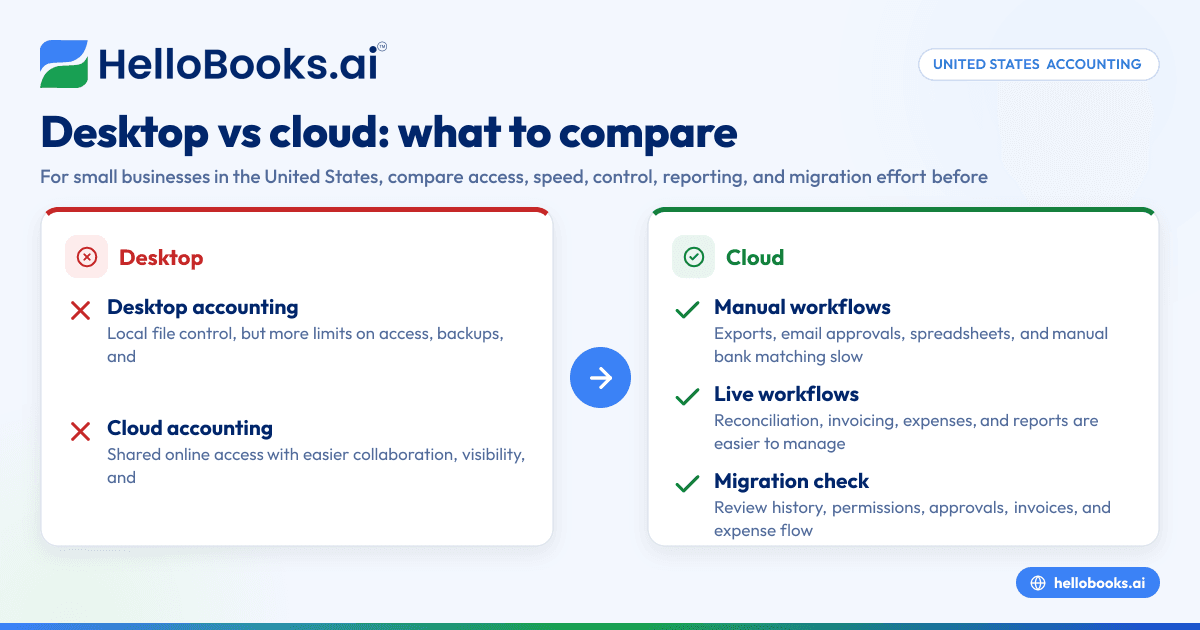
- Desktop accounting gives you local control, but it often creates limits around access, backups, and collaboration.
- Cloud accounting makes it easier for owners, bookkeepers, and accountants to work from different places in real time.
- The real comparison is not just price. It is setup, approvals, reconciliation speed, reporting quality, and error risk.
- If your business uses spreadsheets, email approvals, and manual bank matching, cloud tools can reduce routine work.
- Before switching, review migration effort, historical data needs, user permissions, and how invoices and expenses flow today.
- This is especially important for growing businesses in the United States that need cleaner books, faster close, and stronger audit trails.
What is the difference between desktop accounting and cloud accounting?
Desktop accounting software is installed on one computer or a private server. Cloud accounting software is accessed online through a browser or app, and the vendor manages the hosting and updates.
That sounds simple, but the day-to-day difference is much bigger.
With desktop accounting, work often depends on where the file lives. One person may “own” the file. Another person may need a backup copy. If your accountant needs access, you may end up emailing exports or sharing remote desktop access. That can slow down even basic tasks such as checking open invoices or reviewing a bank reconciliation.
With cloud accounting, the ledger is available from anywhere with the right login and permissions. An owner in Chicago can review cash flow, a bookkeeper in Houston can categorize expenses, and an outside accountant can check month-end adjustments without trading files back and forth.
For many small businesses, the practical difference comes down to five things:
- Access Who can work in the books, and from where?
- Speed How long does invoicing, reconciliation, and close take?
- Accuracy How often do duplicate entries, missed expenses, or coding errors happen?
- Visibility Can you see reports in real time, or only after someone updates a file?
- Control Can you manage approvals, permissions, and audit trails clearly?
If your current setup depends on one office computer, local backups, and a lot of manual entry, cloud accounting usually solves more than just location problems.
Which is better for a small business in the United States?
For most small businesses in the United States, cloud accounting is better when more than one person touches the books, when owners need real-time visibility, or when bank reconciliation and expense tracking take too much time.
Desktop accounting can still fit a very simple business. For example, a single-location company with one internal bookkeeper and stable processes may not feel urgent pressure to switch. If the books are clean, the file is maintained well, and reporting needs are basic, a desktop setup can keep working.
But many businesses outgrow that model quietly.
A distributor in Detroit may start with one office manager posting bills and sending invoices. Then the company adds a sales manager, a controller, a warehouse lead, and an outside CPA. Suddenly, the books are no longer a single-user task. The accounting system becomes a shared workflow.
That is where cloud tools usually win. They support live collaboration, easier data access, and less dependence on one device or one employee.
Businesses in the United States also tend to rely on common tools like QuickBooks, Stripe, email, and online banking. Cloud accounting fits these habits better because teams expect current data, remote access, and simpler sharing.
If you are also evaluating accounting software in the USA, keep your focus on workflow fit, not just brand familiarity.
Desktop accounting vs cloud accounting: what should you compare before switching?
Compare how work actually happens today: access, bank feeds, approvals, invoicing, expense capture, reporting, backups, and accountant collaboration. The best choice is the one that reduces manual work without creating new gaps in control or reporting.
Here are the main areas to compare.
1. Access and collaboration
Desktop systems often create a single point of access. Even if multiple users are technically possible, performance, file conflicts, and remote access workarounds can become a problem.
Cloud systems are built for shared access. That matters if:
- the owner reviews financials from home
- a bookkeeper works part time
- your accountant logs in monthly
- managers approve bills or expenses
- teams operate across multiple locations
This is one of the first signs that desktop accounting is holding you back. If people ask for exports instead of opening live reports, your process is already slower than it should be.
2. Data backup and disaster recovery
With desktop accounting, backup quality depends on your process. If backups are inconsistent, local hardware issues can become business issues fast.
Cloud platforms usually reduce that burden because the software provider handles hosting and system maintenance. That does not remove your responsibility for good internal controls, but it can lower the risk of one machine failure disrupting accounting work.
If your books live on one office computer and nobody has tested the backup restore process recently, that is a serious comparison point.
3. Bank reconciliation and transaction matching
This is where many businesses feel the difference immediately.
Desktop systems often rely on imports, manual coding, and slower review cycles. That can work, but it usually means more time spent matching transactions and resolving exceptions.
Cloud tools often make reconciliation more continuous. Transactions are easier to review during the month instead of all at once after month-end.
If your team spends hours every week comparing statement lines, a modern bank reconciliation software workflow can remove a lot of repetitive work.
4. Invoicing and collections
Ask yourself how invoices are created, sent, tracked, and followed up.
Desktop workflows often involve more manual handling. Someone creates the invoice, prints or emails it, then updates notes somewhere else about payment status.
Cloud workflows are usually easier to manage in one place. You can create, send, and track invoices with less friction. That matters for cash flow, especially if customers pay on different schedules.
If invoicing is still patched together with spreadsheets and email, look at whether invoice software would simplify the full process instead of just replacing one screen.
5. Expense capture and approvals
Expenses are often where desktop systems start to feel outdated. Receipts live in inboxes, employee reimbursements wait, and coding gets delayed until month-end.
Cloud systems can make it easier to collect receipts, track vendor spending, and move approvals faster. That helps owners keep spending under control and reduces end-of-month cleanup.
For companies with managers approving purchases or reimbursements, expense management software is often part of the broader cloud accounting move.
What does cloud accounting usually improve first?
Cloud accounting usually improves visibility and speed first. Teams can see current numbers, share access safely, and keep up with reconciliation during the month instead of cleaning up everything at month-end.
The biggest early win is often not “better accounting.” It is less waiting.
Owners stop waiting for updated reports. Accountants stop waiting for exported files. Bookkeepers stop waiting for one machine or one person to finish with the data file.
That speed creates second-order benefits:
- fewer duplicate entries
- cleaner month-end close
- faster follow-up on overdue invoices
- easier expense tracking
- better cash visibility
This is also where newer tools are changing expectations. People sometimes search for ai desktop accounting because they want automation without changing how they work. In practice, most useful automation today is easier to deliver in cloud systems, where transaction review, categorization, and shared workflows happen in one live environment.
That does not mean every cloud product is “smart” by default. It means cloud platforms are usually better positioned to support automation than older local-file setups.
What are the real downsides of cloud accounting?
Cloud accounting depends on internet access, vendor uptime, and a subscription model. It can also require process changes, retraining, and a careful migration plan if your historical data is messy.
Those downsides are real. You should not switch just because “cloud” sounds modern.
Here are the most common tradeoffs.
You may need to change habits
Many teams are used to desktop routines. They know where reports are. They know how to export files. They know who closes the books and when.
Cloud systems often improve workflow, but they also force cleaner processes. That is good long term, but it can feel disruptive at first.
Data migration takes work
The switch is not only about opening a new account. You need to decide:
- how much historical data to bring over
- how customers and vendors will be cleaned up
- whether chart of accounts changes are needed
- how open invoices and unpaid bills will be handled
- who validates the opening balances
This is where many projects succeed or fail.
Permissions need planning
More access is useful, but only if access is controlled well. You should decide who can view reports, create invoices, approve expenses, reconcile accounts, and post journal entries.
Cloud accounting can improve controls, but only if roles are set up intentionally.
Not every cloud tool fits every business
A service business, a retail company, and a light manufacturer do not all need the same workflow. If your business has inventory complexity, location-level reporting, or approval rules, test those areas first.
How should you evaluate a switch?
Start with your current pain points, then test the workflow that matters most. Do not compare feature lists alone. Compare how long it takes your team to finish routine work with fewer errors.
Use this process.
1. Map your current monthly workflow
List the tasks your team does every month:
- send invoices
- collect payments
- record expenses
- reconcile bank and card accounts
- review financial statements
- close the month
- send reports to your accountant
Now note where each task slows down.
2. Identify high-friction tasks
Mark the tasks that create the most delay or error risk. For most small businesses, these are usually:
- bank reconciliation
- receipt collection
- invoice tracking
- duplicate data entry
- owner approvals
- accountant handoff
These are your best test cases.
3. Decide what “better” means
Set practical success criteria. For example:
- reduce bank reconciliation time by 50%
- close books within 7 business days
- eliminate manual invoice status tracking
- give the accountant direct access without file sharing
- reduce uncategorized expenses at month-end
Without clear targets, the decision becomes vague.
4. Review migration scope
Ask these questions:
- How many years of history do you need in the new system?
- Do you need full transaction detail or only summary balances?
- Are customer and vendor lists clean?
- Are there old inactive accounts that should be removed?
- Who will confirm opening balances?
5. Test reports before committing
Do not assume reporting will be “close enough.” Review:
- profit and loss
- balance sheet
- accounts receivable aging
- accounts payable aging
- cash flow views
- expense detail by vendor or category
If management relies on custom exports today, make sure the new setup can support those decisions.
6. Involve your accountant early
Your external accountant or finance lead should review the migration plan before you switch. This is general information, not tax or legal advice. If your change affects filing support, records, or year-end processes, get professional guidance specific to your business.
If you need help cleaning up the process before moving systems, you may also want to find an accountant.
When should you stay with desktop accounting a little longer?
You may stay with desktop accounting a little longer if your setup is stable, your books are clean, access needs are simple, and there is no urgent workflow problem to fix.
That said, “working” is not the same as “efficient.”
A business may stay on desktop accounting if:
- one trusted person handles all bookkeeping
- remote access is not important
- monthly transaction volume is low
- reporting needs are basic
- there is no immediate change in staffing or structure
Even then, you should have a plan. Growth changes requirements fast. New hires, outside accountants, lenders, or buyers usually want cleaner access, stronger controls, and better reporting history.
In the United States, many buyers and larger customers also expect stronger process maturity from vendors, including documented controls and secure handling of financial information. You do not need a complex finance stack on day one, but your accounting system should not create avoidable friction.
Where does AI fit in this comparison?
AI helps most when accounting work is repetitive, high-volume, and review-based. That includes categorizing transactions, extracting receipt data, flagging anomalies, and speeding up bookkeeping review inside a cloud workflow.
This is why many businesses moving away from desktop systems are also looking at AI bookkeeping and broader AI accounting software. The value is not just automation for its own sake. The value is faster books with less manual cleanup.
For example, if your team spends hours each week on expense coding and reconciliation review, AI can reduce the amount of handwork required before month-end. That matters more than a long feature checklist.
The key point is this: AI works best when the accounting system is easy to access, easy to review, and updated continuously. That is usually a better fit for cloud accounting than for traditional local-file software.
If you are comparing options, focus on whether the system helps your team finish real tasks faster. A good accounting software for small business setup should reduce manual entry, improve visibility, and make collaboration easier from day one.
A practical switching checklist for small businesses
Before you move from desktop to cloud accounting, run through this short checklist:
Operations
- Who needs access?
- From which locations?
- What tasks are delayed today?
- What approvals happen over email?
Data
- Is your chart of accounts clean?
- Are customer and vendor records current?
- Do you need historical transactions or only balances?
- Are open invoices and bills accurate?
Controls
- Who can create, approve, and edit transactions?
- Who can reconcile bank accounts?
- Who can post journals?
- Who can view payroll-related data, if applicable?
Reporting
- Which reports does management actually use?
- What reports does your accountant need?
- Do you need class, department, or location reporting?
- How quickly do you need month-end numbers?
Adoption
- Who owns the switch internally?
- Who will train users?
- How will you validate the first month in the new system?
- What is your fallback plan if data needs correction?